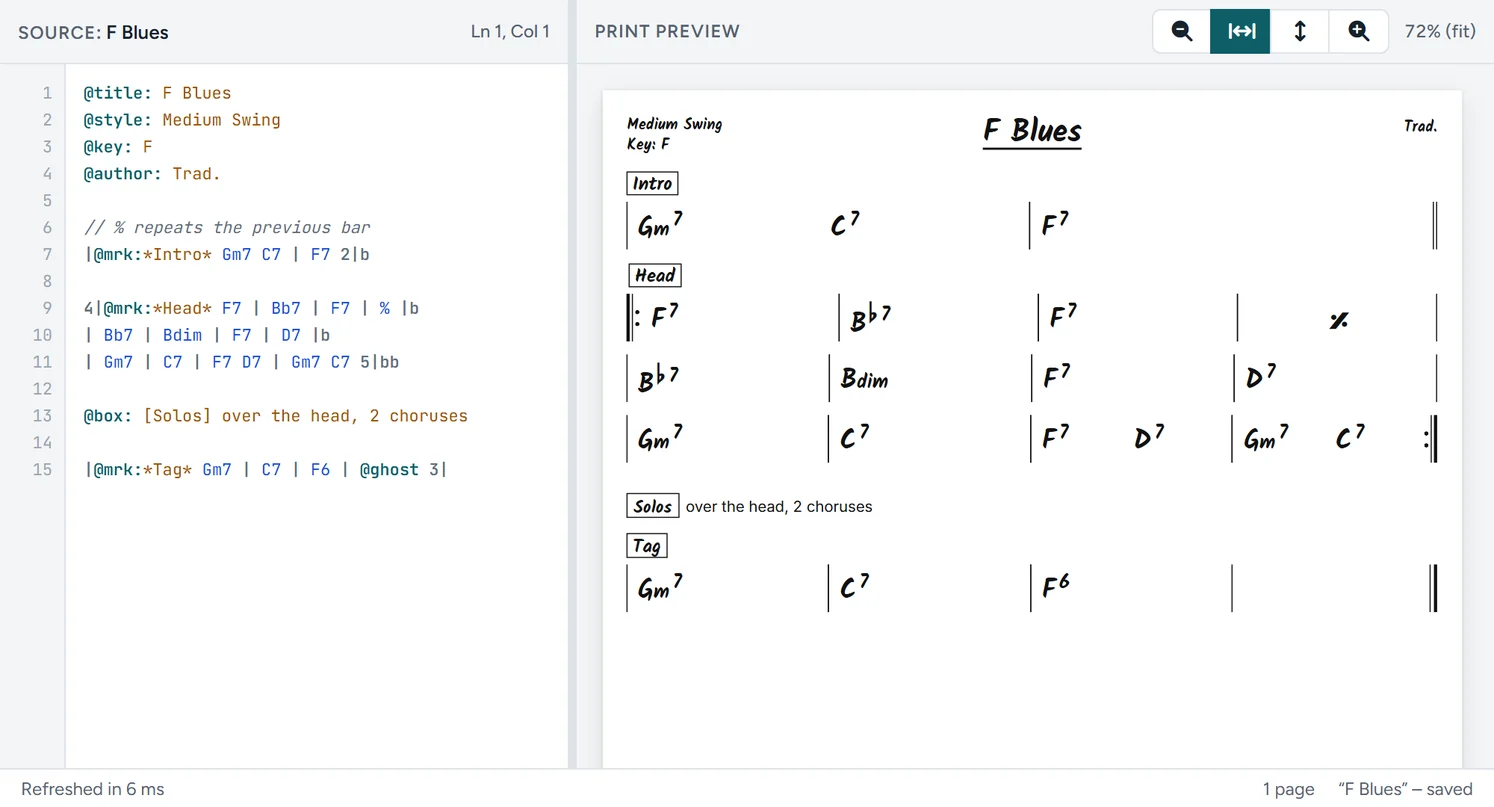
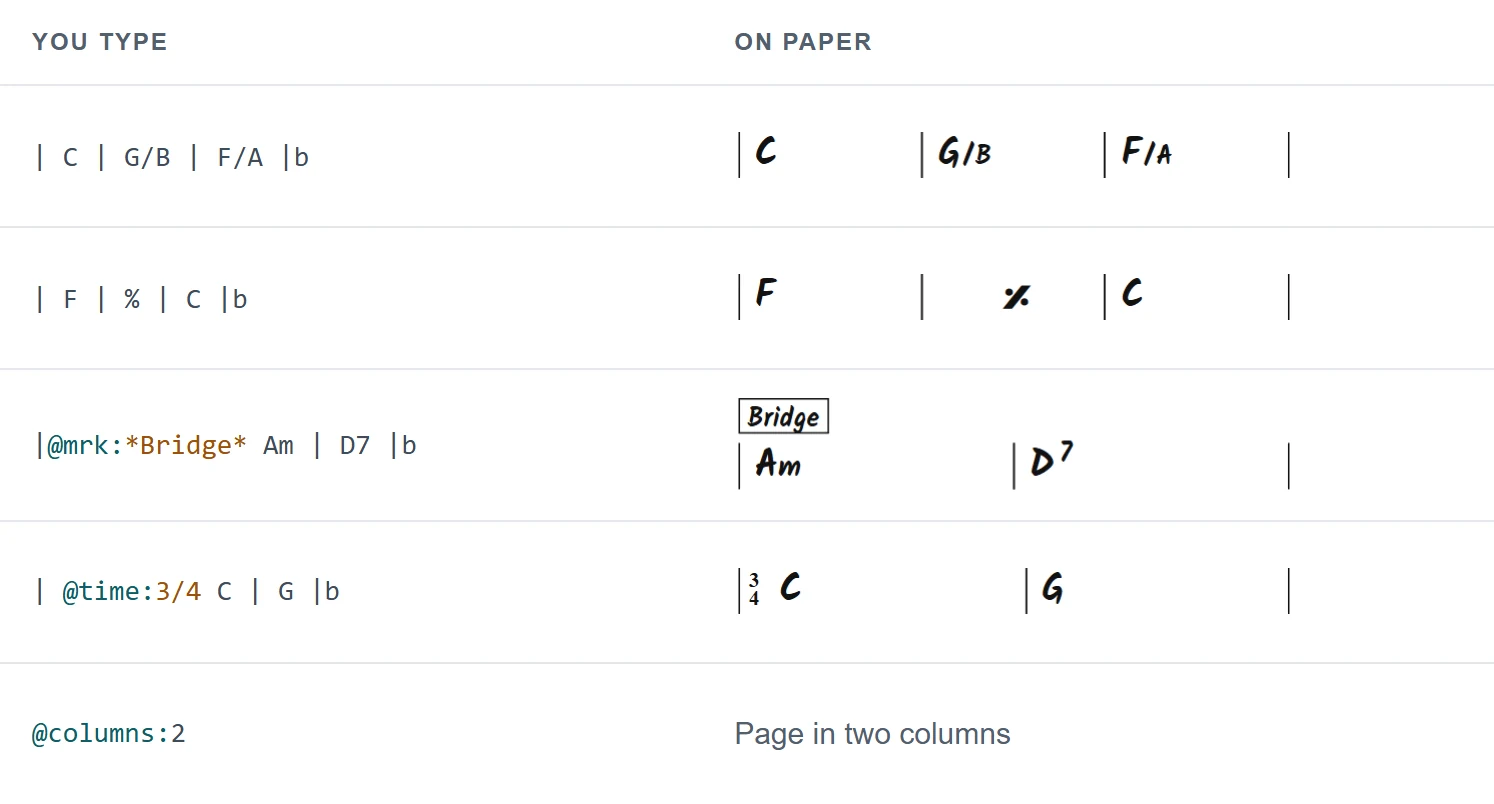
Everything about the editor on one page: what is on the screen, what each button does and how you write, save, print and practise a chart. The notation itself is in the notation guide.
Contents: Getting started · The screen · The toolbar · File menu · My songs · Templates · Print preview · Transpose · Ultimate Guitar import · Edit tab · Spotify player · Practice player · Settings · App and offline · Shortcuts · Account
Getting started
- Open the editor and type a header:
@title:,@style:and@key:. Or, with Pro, pick a ready-made start in the Template… menu. - Type the bars, one row at a time:
| C | Am | F | G |b. Mark sections with@mrk:*Verse*. The print preview follows as you type. - Save and print. Ctrl+S saves the chart (in My songs with a Pro account, otherwise as a .txt file on your device), Ctrl+P prints it or saves it as a PDF.
Tip: several songs in one file. Start every song with its own @title:. Each title after the first one begins a new page with its own header, so a whole set list prints in one go. See the notation guide.
The editor works without an account. Features marked Pro on this page need a Pro account: see Pricing.
The screen
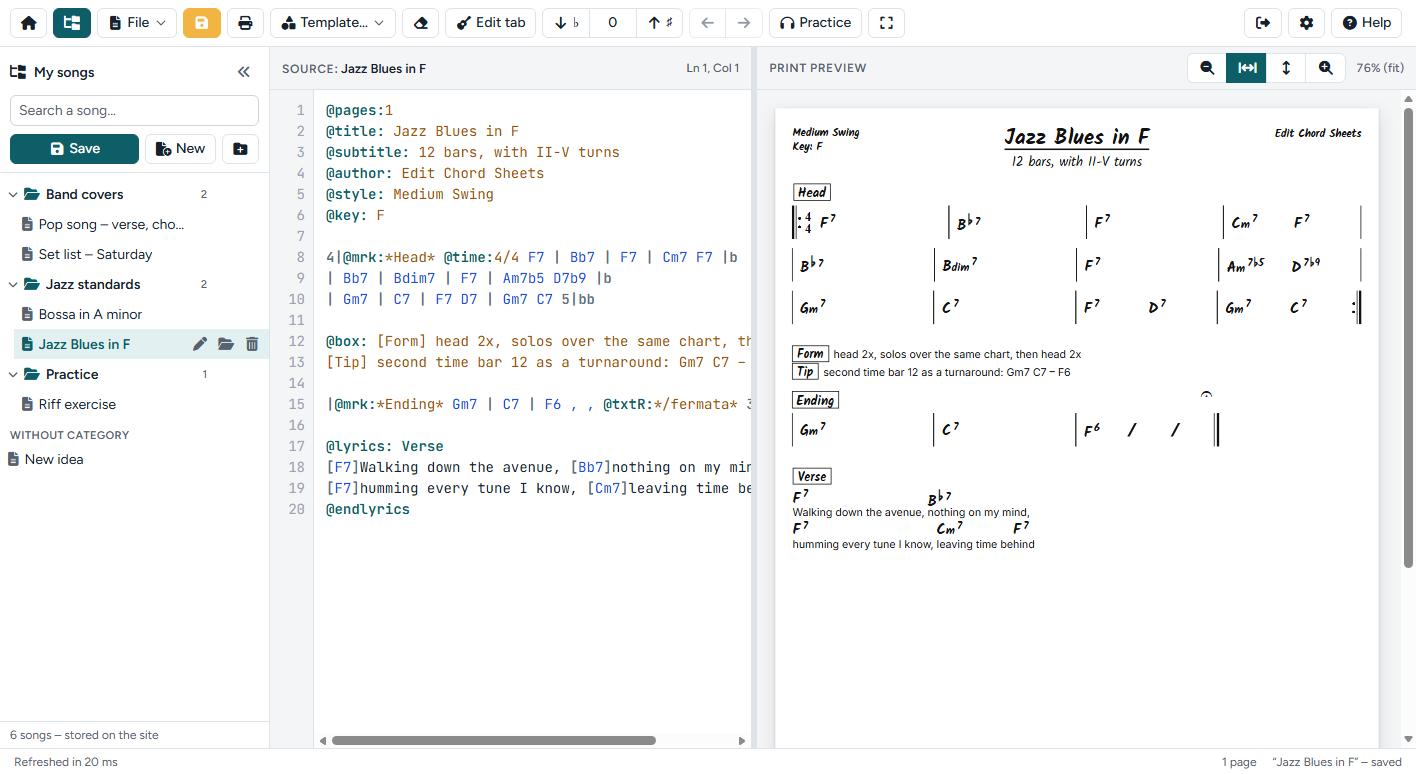
- Toolbar (top): all actions, see below.
- My songs (left, Pro): your songs and categories, stored with your account.
- Source (middle): the text of the chart, with line numbers and colours for the notation. The name of the open song is shown after Source:; the position of the cursor is shown on the right.
- Print preview (right): the chart exactly as it will be printed. Drag the bar between the text and the preview to make either side wider.
- Status bar (bottom): messages, the number of pages and whether the song is saved. When the text contains a mistake, a message shows here; click it to see all messages and jump to the line.
On a phone the panes are stacked and the toolbar folds into a menu button (☰).
The toolbar

| Button | What it does |
|---|---|
| Back to setlists | Only when you opened the editor from Setlists: back to the screen you came from. With unsaved changes in My songs the editor asks to Save, Don't save or Cancel first. |
| Home | Back to the home page of the site. |
| My songs | Show or hide the list of your songs (Pro). |
| File | Save, open, import, print and export: see File menu. |
| Save | Save the chart: in My songs (Pro) or as a .txt file (Ctrl+S). |
| Print the chart, or save it as a PDF from the print dialog (Ctrl+P). | |
| Refresh | Redraw the preview (Ctrl+Enter). Only shown when Refresh automatically while typing is off in the settings; File › Refresh and Ctrl+Enter always work. |
| Template… | Insert a template at the cursor (Pro): see Templates. |
| Clear | Empty the editor. Ctrl+Z brings the text back. |
| Edit tab | Edit the tab block at the cursor in the visual tab editor (Pro). |
| ↓♭ 0 ↑♯ | Transpose the song at the cursor a semitone down or up (@transpose:). The number shows how far it is from the original; click it to go back to 0. |
| ← → | Move the selected chords to the left or right (Alt+← / Alt+→). |
| Player | The Spotify player with loops. Only shown when the chart has a @spotify: line (Pro). |
| Practice | The practice player for your own audio files (Pro). |
| Full screen | Use the whole screen for the editor. Click again (or press Esc) to leave full screen. |
| Log out | On the right: log out of your account (only when you are logged in). You will go to the home page. |
| ⚙ | Settings: see Settings. |
| Help | The notation reference in a side panel (F1). |
Buttons for features that are not part of your plan are not shown.
File menu
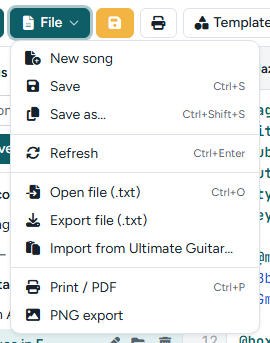
- New song, Save (Ctrl+S) and Save as… (Ctrl+Shift+S): for My songs (Pro).
- Refresh: redraw the preview (Ctrl+Enter). Only needed when automatic refresh is off, for example for a very large chart on a slow device.
- Open file (.txt) (Ctrl+O): open a chart from your device. With My songs, the text opens as a new, unsaved song.
- Export file (.txt): download the text of the chart to your device. A .txt file is small and opens in any text editor.
- Import from Ultimate Guitar…: convert a song with the chords above the lyrics (Pro), see below.
- Print / PDF (Ctrl+P): print the chart, or choose Save as PDF in the print dialog of your browser.
- PNG export: save the chart as an image, for example to send it in a chat. The resolution is a setting.
- Install as app: only shown when your browser offers it, see App and offline.
Without an account, the editor keeps your latest text as a draft in your browser, so it is still there when you come back. Save a .txt file to keep a chart for good.
My songs Pro
With a Pro account, your songs are stored on the site with your account, so they are ready on every device where you log in. Only you can see them.
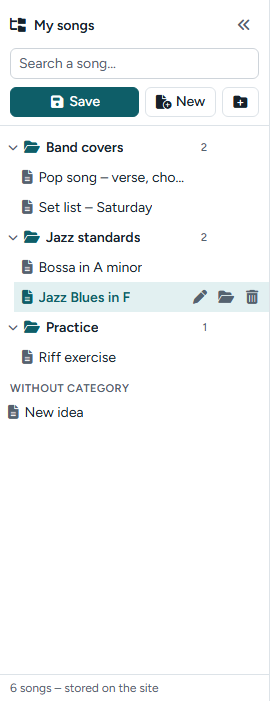
- Open a song: click it. The song that is open is highlighted.
- Search: type a part of the name in the search field.
- Save (Ctrl+S): save the open song. A new song asks for a name and a category first.
- New: start a new, empty song.
- New category (the folder button): add a category. Categories are always at the top; songs without a category are listed under Without category.
- Rename, move, delete: hover over a song (or tap it on a touch screen) for the pen, the folder and the bin. You can also drag a song onto a category.
- Categories: click the arrow to fold a category in or out. Rename or delete it with its buttons. When you delete a category, its songs are kept: they move to Without category.
- Width: drag the right edge of the panel to make it wider or narrower; the button « hides it.
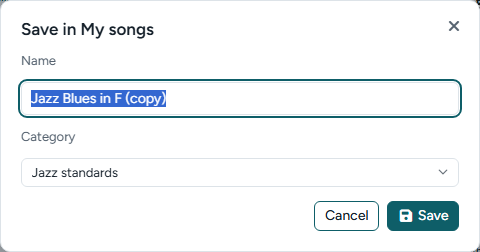
Names are unique. When a song with the same name already exists, the editor asks whether to overwrite it or to choose another name. Unsaved changes are never lost by accident: when you open another song or start a new one, the editor asks to Save, Don’t save or Cancel. A dot (●) next to the song shows that it has unsaved changes.
Templates Pro
Template… puts a ready-made piece of text at the cursor: a header with all fields, a section with a repeat and endings, a 12-bar blues, guitar and bass tab, chord diagrams, a lyrics block, a complete example and more. The menu is one list, in the order of the template file. Choose an item, then change it to your song.
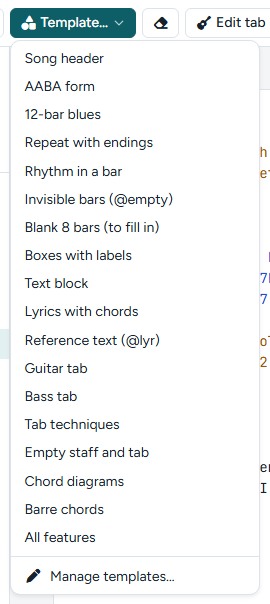
You can also make the Template menu your own: choose Template… › Manage templates….
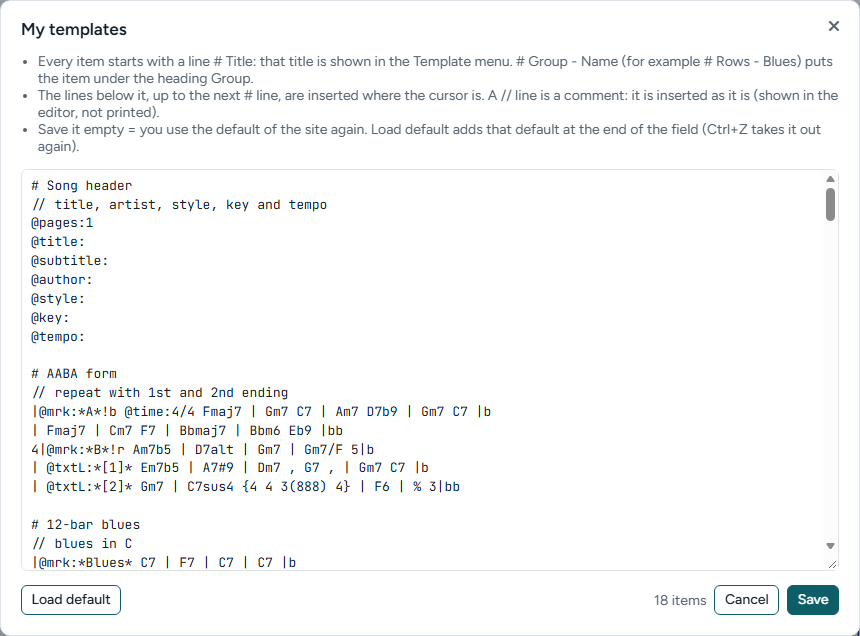
- Every template starts with a line
# Title. That title is shown in the Template menu, for example# 12-bar blues. Write# Group - Nameto put items under a heading in the menu. - The lines below it, up to the next
#line, are inserted at the cursor. - A
//line is a comment: it is inserted as it is, and shown in the editor but not printed. - Load default adds the templates of the site at the end of the field, so you can start from those. Ctrl+Z takes them out again.
- The format is checked while you type; mistakes are listed with their line number and nothing is saved until they are fixed.
- Save the field empty to use the templates of the site again.
Print preview
The preview shows the chart on paper (A4 or US Letter, a setting) and is redrawn while you type.
- Zoom: the buttons above the preview zoom out, fit the width, fit the whole page and zoom in. The current zoom is shown next to them.
- Select chords: click a chord to select it (click more chords to select several). Then transpose only those, or move them with ← →. Esc clears the selection.
- Jump to the text: double-click a chord or a block (text block, lyrics, text box, tab, chord diagrams, a row of bars) to go to it in the text. Click a tab to open it in the tab editor (Pro).
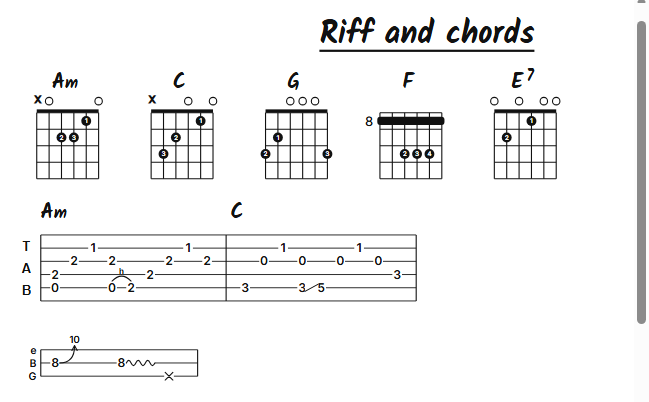
- Tabs and chord diagrams: ASCII tab is drawn as tablature, with the fret numbers on the lines and symbols for hammer-ons, slides, bends and vibrato.
@diagrams:draws guitar chord diagrams with the chord name above them. See the notation guide.
Transpose and move chords
The arrows ↓♭ and ↑♯ transpose the song the cursor is in a semitone down or up, up to an octave. They write a line @transpose: +2 below the title of the song: the text keeps its own key, and the preview, print, PDF and PNG show the song transposed. Chords in lyrics, chord diagrams and the key in the header move along; notes in quotes do not. With several songs in one file, every song has its own @transpose:. The number between the arrows shows the value for the song at the cursor; click it to go back to the original key.
When chords are selected in the preview, the arrows change only those chords, in the text itself.
The arrows ← and → move the selected chords a little to the left or right within their bar, for a better fit above the beat.
Import from Ultimate Guitar Pro
Copy a song with the chords above the lyrics, for example from Ultimate Guitar, and choose File › Import from Ultimate Guitar….
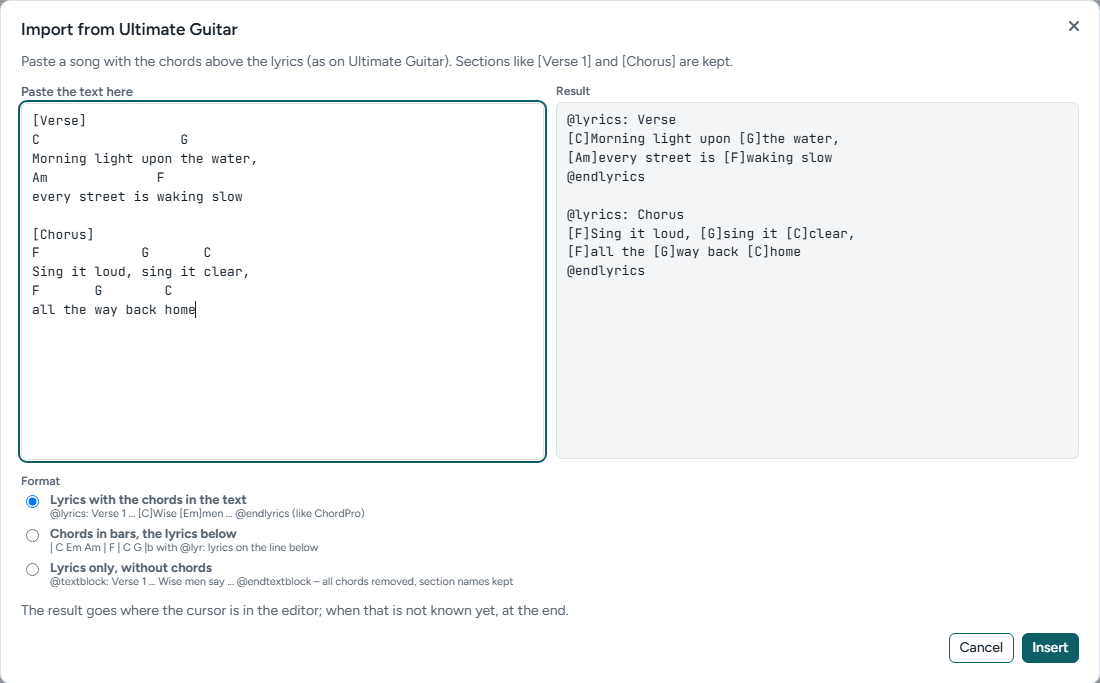
- Lyrics with the chords in the text: every section becomes a lyrics block with the chords in square brackets.
- Chords in bars, the lyrics below: every section becomes rows of bars with a rehearsal mark, and the lyrics as reference text below them. Set how many characters of text make one bar.
- Lyrics only, without chords: all chords are removed; every section becomes a text block (
@textblock) with the section name, such as Intro or Chorus, as its title. - Section names such as [Verse 1] and [Chorus] are kept. Insert puts the result at the cursor (or at the end).
Edit tab Pro
Put the cursor in a @tab block and click Edit tab. Without a tab block at the cursor, a new one is made.
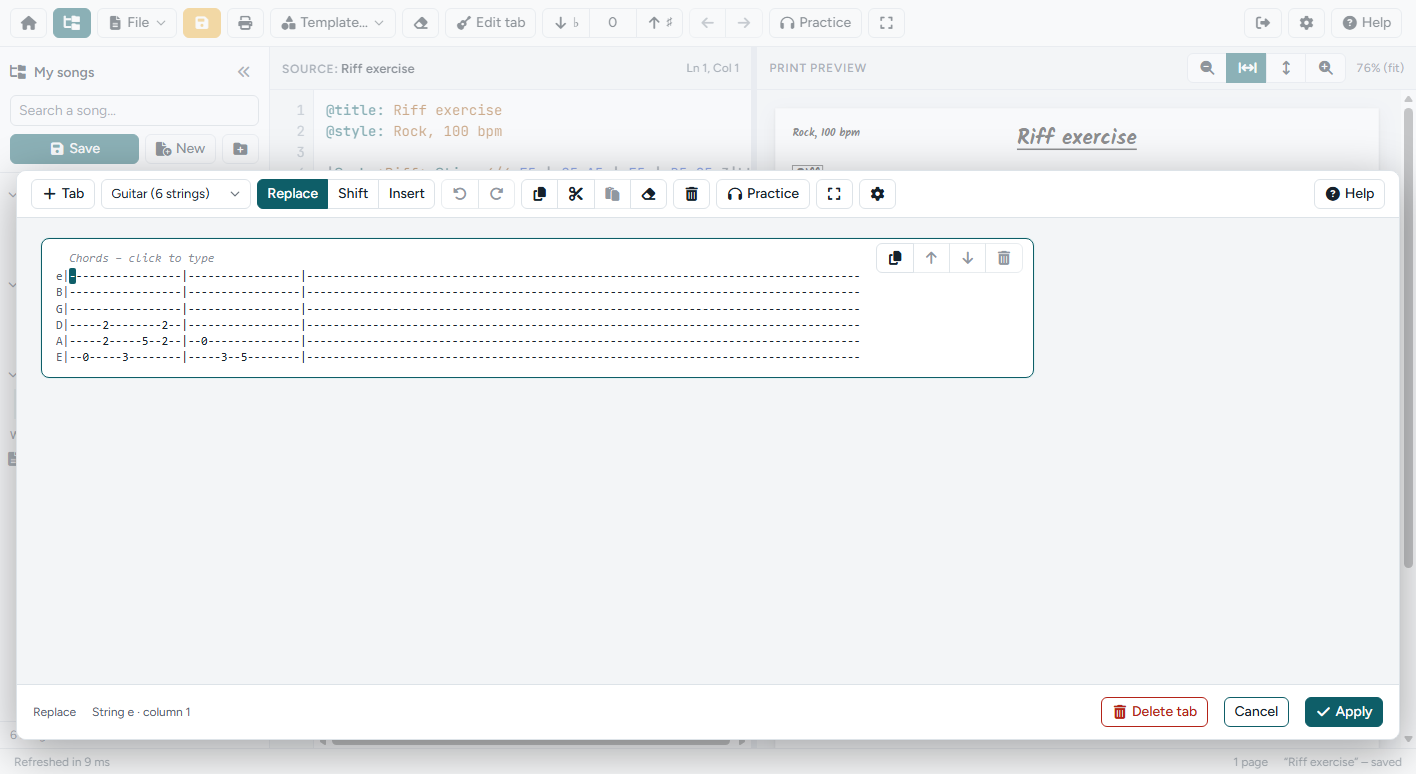
- Click a position on a string and type the fret number. The arrow keys move the cursor.
- Choose the instrument (guitar, or 4- or 5-string bass), and whether typing replaces, shifts or inserts.
- Add tab rows with + Tab; copy, cut, paste and clear a selection; type chord names above the tab.
- Apply writes the tab back into your chart. Delete tab removes the block.
Tab along with a recording. The tab editor opens as a panel above the player bars, so the Spotify player and the practice player stay in sight while you write. Open them with Player or Practice in the toolbar of the tab editor. Alt+Space plays and pauses, Alt+[ and Alt+] set a loop, without leaving the tab. After a click in a player bar, your typing goes straight back to the tab. The rest of the editor is dimmed until you click Apply or Cancel.
Spotify player Pro
Add a Spotify track to your chart with @spotify: and the link of the track (in Spotify: Share › Copy song link). The Player button appears in the toolbar and opens the Spotify player below the editor.
Add @loop: Solo 2:41-3:05 lines for the parts you want to practise. Choose a loop in the loop menu or with ◀ ▶; the player repeats it. A and B set a new loop at the current position. Playing needs a Spotify account; the player is only loaded when you open it.
On a phone or tablet the Spotify player does not work. Spotify only plays a 30-second preview in a mobile browser, so the loops, ◀ ▶ and A / B are left out there. The editor says so, with Open in Spotify to play the track in the Spotify app, and Practice player to practise with your own recording, with loops, speed and pitch. On a computer, log in to Spotify in the same browser for the whole track; without a login it also plays only the preview.
Practice player Pro
Practise with your own recordings: mp3, m4a, wav or ogg. Slow a part down without changing the pitch, change the pitch without changing the tempo, and repeat a loop as often as you need.
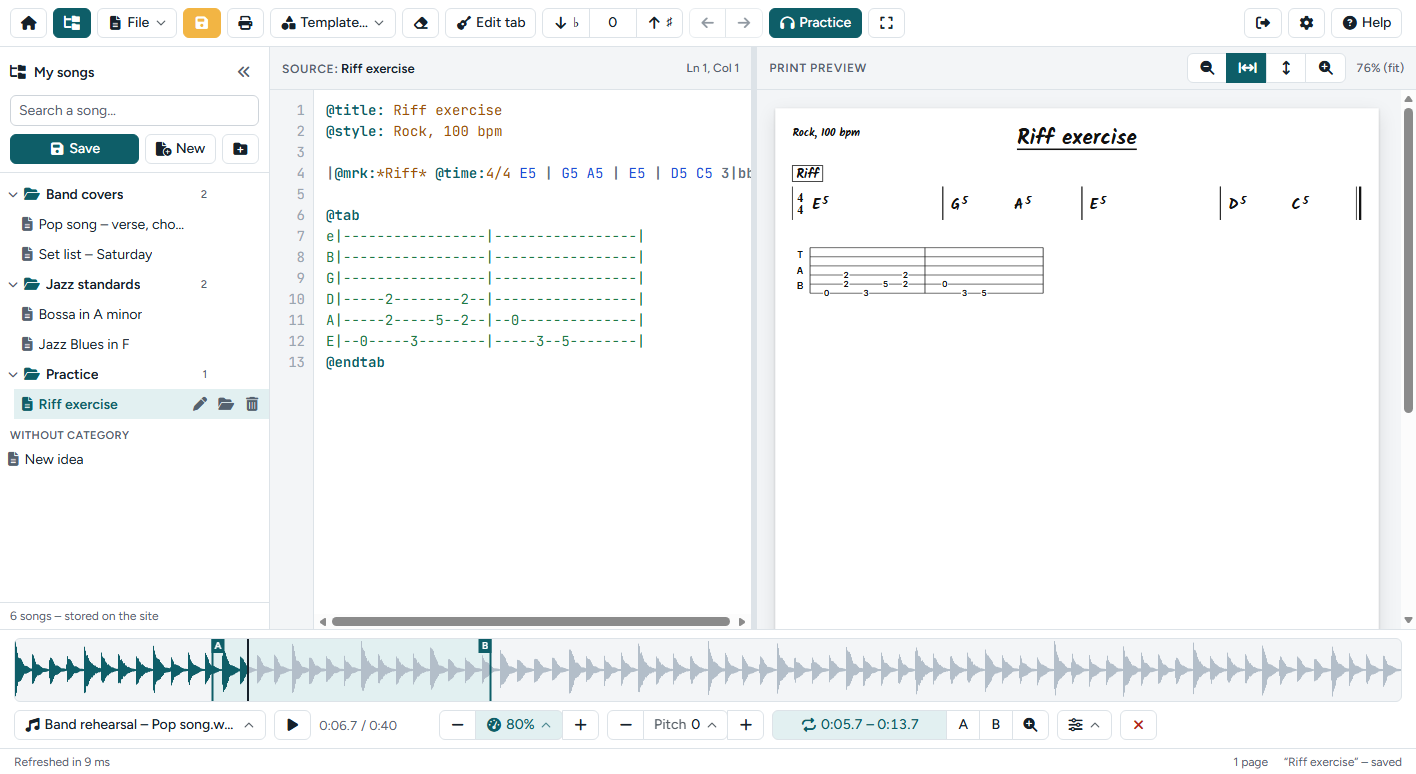
- Waveform: click to go to a position, drag to make a loop, drag the A and B handles to change it. Ctrl+mouse wheel zooms, Shift+drag scrolls.
- Speed: 25 to 125 % without changing the pitch. Use − and + or the menu for a preset.
- Pitch: up to 12 semitones up or down, and fine tuning of ±50 cents, without changing the tempo.
- Loop: A and B set the start and end at the current position; the loop button turns the loop on or off.
- Practice aids (the sliders button): a pre-roll before A, a pause between repetitions, and the speed trainer, which starts slowly and plays a little faster each time up to your target speed.
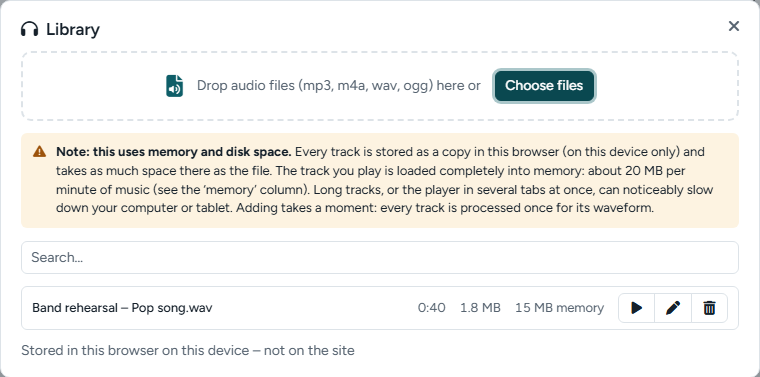
Add tracks in the library (the track menu on the left of the bar), or drop audio files on the player. Tracks are stored as a copy in your browser, on this device only; they are never uploaded to the site. The track that is playing is held in memory (about 20 MB per minute of music). For every track, the loop, speed, pitch and position are remembered.
| Keys | Action |
|---|---|
| Alt+Space or Alt+P | Play / pause, also while you type and in the tab editor. Space alone works when the cursor is not in the text |
| Alt+[ / Alt+] | Set A / B at the current position; B starts the loop |
| Alt+\ | Loop on / off |
Settings
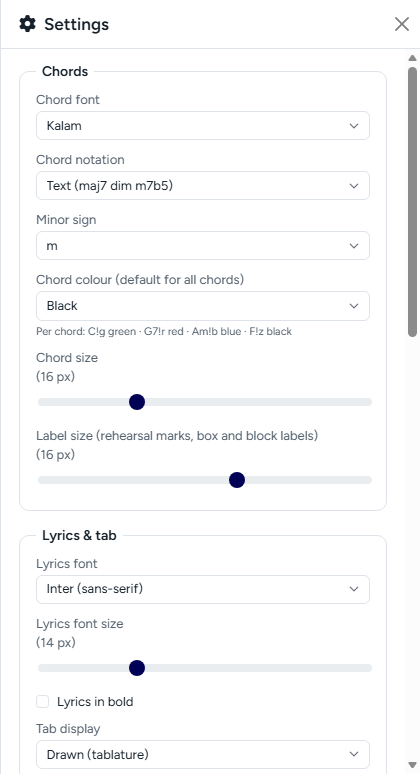
- Chords: the handwritten chord font, jazz symbols (△ ° ø) or text (maj7 dim m7b5), the minor sign, the default chord colour, the chord size and the label size (rehearsal marks and the labels of text boxes, lyrics and text blocks).
- Lyrics & tab: the font, size and weight of lyrics; tab display (drawn as tablature or as text) and the font, size and line spacing of ASCII tab.
- Chord diagrams: the size of the diagrams and finger numbers in the dots (on or off).
- Page & spacing: paper size (A4 or US Letter), the space between rows, the space between blocks (text boxes, lyrics, text blocks, tab, chord diagrams, staves) and the bottom margin after
|band|bb. - Output & app: PNG resolution, refresh while typing, autocomplete, syntax colours in the editor and a dark interface.
Settings are kept in your browser and apply to all your charts. Reset settings goes back to the defaults.
Install as an app, and offline
Install the editor as an app on your phone, tablet or computer: it gets its own icon and opens without the bars of the browser. Choose File › Install as app when your browser offers it, or use the menu of the browser (on Android: Add to Home screen or Install app). On an iPhone or iPad, tap Share in Safari and then Add to Home Screen.
The editor also opens without internet, once you have used it with a connection: writing, the print preview, printing and the draft in your browser all work. My songs, the Spotify player and the import from Ultimate Guitar need a connection.
With Setlists it is one app: Sheet Groove holds the editor and Setlists. In Setlists, ⋮ › Sheet Groove editor opens the editor, and Back to setlists in its toolbar takes you back.
The help panel
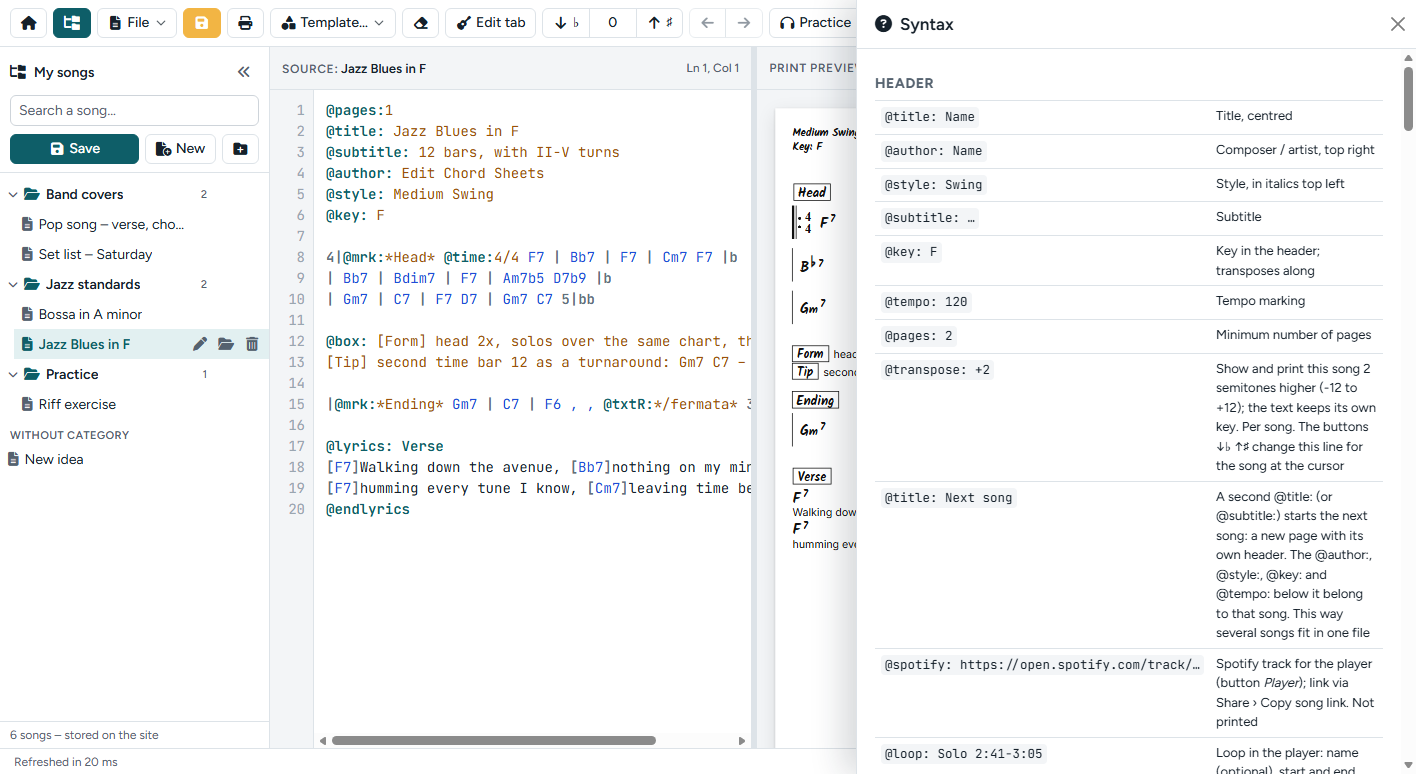
The help panel lists every symbol of the notation, so you never have to leave the editor. It is the same reference as the notation guide.
Keyboard shortcuts
| Keys | Action |
|---|---|
| Ctrl+Enter | Refresh the preview |
| Ctrl+S | Save (My songs, or a .txt file without an account) |
| Ctrl+Shift+S | Save as… (My songs) |
| Ctrl+O | Open a .txt file |
| Ctrl+P | Print / PDF |
| Ctrl+Z | Undo |
| F1 | Help panel |
| Alt+↑ / Alt+↓ | Move the line (or selection) up / down |
| Shift+Alt+↑ / Shift+Alt+↓ | Copy the line (or selection) up / down |
| Alt+← / Alt+→ | Move the selected chords |
| Esc | Clear the chord selection |
| Alt+Space | Play / pause the practice player (or the Spotify player when the practice player is closed) |
Account and logging out
Log in with Login at the top of the site. In the editor, the button next to Home logs you out; you return to the home page. Change your name, e-mail address or password under Edit profile. To delete your account and all your songs, contact us.
A question, a bug or an idea for the editor? We would love to hear from you.
E-mail:
Phone: +31 162 310167 (Monday to Friday, 9:00–17:00, CET)
When you report a problem, please add the text of your chart (or the .txt file) and the browser you use. That helps us reproduce it.
Company details
R2H B.V.
De Slof 28A
5107 RJ Dongen
The Netherlands
Chamber of Commerce (KvK): 18082715
VAT: NL815833076B01
Bank: NL47 RABO 0116 0777 51
Hi, I am Rick Spaan. I play guitar, and I built Sheet Groove because I needed it myself.
Why I made it
As a guitarist I often have to write music out: the chords of a new song for the band, a set list for a gig, or the changes I want to remember. Every time I ran into the same problem. There was no simple tool to write chords down quickly and add my own notes to the sheet. Notation software takes ages for a plain chord chart, and a word processor never puts the chords where they belong.
I also wanted to share a chart easily: send it to the other band members, print it for the music stand, or open it on a tablet at rehearsal.
Chords, notes and a lick
A chord chart is often not enough on its own. Many songs have a short lick that everybody needs to know, such as the riff of the intro or a fill before the chorus. So you can add it right in the chart as a tab. That little bit of tab works as an anchor: one look and you know how the intro goes.
Simple, but with a lot under the hood
Even though it is a simple tool, there is a lot in it: sections and repeats, lyrics with chords, tabs and chord diagrams, transposing, two columns on one page, and players to practise along with a recording. There are also plenty of handy tricks to edit and change a chart fast, such as templates, moving lines and chords with the keyboard, and double-clicking the preview to jump straight to the text. You find them all on the features page and in the help.
Who is behind it
Sheet Groove is made by R2H B.V., my web development company in Dongen, the Netherlands. Everything runs in your browser. The chart is plain text, so it is small, easy to share and will still open in twenty years.
Get in touch
Ideas, a bug or a feature you miss? I would love to hear from you: contact me by e-mail or phone.
This privacy policy explains which personal data Groove Sheets (groovesheets.com) processes, why, and what your rights are. We collect as little as possible: in the free version, your charts never leave your device.
Last updated: 21 October 2026
Who is responsible
R2H B.V. is the controller of your personal data under the General Data Protection Regulation (GDPR, in Dutch: AVG).
R2H B.V.
De Slof 28A
5107 RJ Dongen
The Netherlands
Phone: +31 162 310167 (Monday to Friday, 9:00–17:00)
E-mail:
Chamber of Commerce (KvK): 18082715
VAT: NL815833076B01
What we process, and why
| Data | Purpose | Legal basis | Kept for |
|---|---|---|---|
| Name, username, e-mail address, password (encrypted), date of registration and last visit | Your account: logging in, password reset and messages about the service | Contract | As long as you have an account |
| Your songs, categories and templates | Storing them in My songs and showing them to you on every device | Contract | As long as you have an account, or until you delete them |
| Songs, PDF files and setlists in Setlists, and your viewer choices | Storing them and showing them to you, and band songs to the members of the band | Contract | As long as you have an account, or until you or the band delete them |
| Bands: your membership and role, and the e-mail addresses of the people you invite | Sharing the library of a band, and sending an invitation and checking that the right account accepts it | Contract; for the person invited: legitimate interest of the band | As long as the membership or the band exists |
| Subscription and payment details (plan, period, amounts, invoices) | Pro subscription and administration | Contract and legal obligation | 7 years (Dutch tax law) |
| E-mails and messages you send us | Answering your question | Legitimate interest | Up to 2 years after the last contact |
| IP address, browser and time of a request (server and security logs) | Security, preventing abuse and solving errors | Legitimate interest | At most 6 months |
| Anonymised visit statistics (Matomo) | Understanding how the site is used, to improve it | Legitimate interest | At most 25 months |
In a band, the members see the songs, setlists and shared PDF files of the band and the names of the other members. The admins also see the e-mail addresses of open invitations.
We do not sell your data, do not use it for advertising and do not make automated decisions about you.
Data that stays on your device
Some data is never sent to us; it stays in your own browser:
- Drafts and settings: the editor keeps your latest text as a draft and your settings in the local storage of your browser.
- .txt and PNG files you save end up on your own device.
- Audio files in the practice player are stored as a copy in your browser (IndexedDB), on that device only. They are never uploaded.
- Offline setlists: a setlist you save for offline use is stored in your browser with its PDF files and chord sheets, on that device only. The options of Setlists are kept there as well.
You can remove this data at any time by clearing the site data in your browser.
Statistics with Matomo
We use Matomo to count visits. Matomo runs on our own server; the data is not shared with Matomo or any other party. We have set it up in a privacy-friendly way: it does not use cookies, IP addresses are anonymised, and visits are not linked to your account or followed across other websites. Because of this, we do not ask for your consent. You can object to it at any time (see Your rights below).
Third parties
- Hosting: the site and its database run on a server of our hosting provider in the European Union. This provider processes data only on our behalf, under a data processing agreement.
- Payments: Pro payments are handled by [payment provider]. They receive the data needed for the payment and are responsible for it under their own privacy policy.
- Spotify: the Spotify player is only loaded when you open it for a chart with a
@spotify:link. Spotify then receives data such as your IP address and may set cookies; Spotify’s privacy policy applies. - Fonts: all fonts are hosted on our own server. No data is sent to Google Fonts or other font services.
We do not transfer personal data to countries outside the European Economic Area, except where you choose to use Spotify.
Security
We protect your data with appropriate technical and organisational measures: the site uses an encrypted connection (HTTPS), passwords are stored encrypted, songs and PDF files are only available to the account that owns them or to the members of the band they belong to, and access to the server is limited. Backups are kept for a limited time and then overwritten.
Your rights
Under the GDPR you have the right to:
- access the personal data we hold about you;
- have incorrect data corrected;
- have your data deleted (including your account and songs);
- restrict processing, or object to processing based on legitimate interest;
- receive your data in a common format (data portability): your songs are plain text;
- withdraw consent, where processing is based on consent.
Send your request to
Complaints
If you are not satisfied with how we handle your data, please contact us first. You also have the right to file a complaint with the Dutch Data Protection Authority, the Autoriteit Persoonsgegevens.
Children
The service is not meant for children under 16 without permission of a parent or guardian. We do not knowingly collect data of children under 16.
Changes
We may change this privacy policy. The latest version is always on this page; we tell account holders about important changes by e-mail. See also our cookie policy and terms and conditions.
These general terms and conditions (in Dutch: algemene voorwaarden) apply to the use of Sheet Groove (sheetgroove.com), the online chord sheet editor and Setlists of R2H B.V., and to every subscription.
Last updated: 21 October 2026
1. Who we are
R2H B.V.
De Slof 28A
5107 RJ Dongen
The Netherlands
Phone: +31 162 310167 (Monday to Friday, 9:00–17:00)
E-mail:
Chamber of Commerce (KvK): 18082715
VAT: NL815833076B01
2. Definitions
- We, us: R2H B.V.
- The service: the website, the chord sheet editor and Setlists, including all features of the free version, of Pro and of the band plans.
- You: anyone who uses the service, with or without an account.
- Consumer: a user who does not act for a business or profession.
- Pro: the paid subscription that adds the features, Setlists included, listed on the pricing page.
- Band plan: the paid subscription with which the owner of a band shares songs, PDF files and setlists with the members of the band.
- Content: the charts, songs, categories, templates, PDF files, setlists and other material you put in the service.
3. Applicability
These terms apply to every use of the service and to every agreement between you and us. By using the service or creating an account you accept them. Other terms, such as your own purchase conditions, do not apply. If a provision of these terms is void, the other provisions remain in force; we will then replace the void provision with one that comes as close as possible to its intent.
4. The free version
You can use the editor without an account, free of charge. In the free version, your chart stays in your own browser and on your own device: we do not store it. We may change, extend or limit the free version at any time.
5. Your account
- You must be at least 16 years old to create an account, or have permission from a parent or guardian.
- Give correct details and keep them up to date. Keep your password secret; you are responsible for everything that happens with your account.
- An account is personal. Do not share it with others.
- Tell us at once at
This email address is being protected from spambots. You need JavaScript enabled to view it. if you think someone else uses your account.
6. Subscriptions, prices and payment
- Pro is available per month (€ [X] per month) or per year (€ 29 per year). The current prices are on the pricing page. Prices include Dutch VAT.
- Band plans are available per year and include Pro for the owner: Band Basic + Pro (€ 39) and Band Pro + Pro (€ 59), each with its own maximum number of members and storage. The owner of a band takes the plan; the members of the band do not pay.
- You pay in advance for each period.
- A subscription is renewed automatically for the same period, unless you cancel it before the end of the current period.
- You can cancel at any time, effective at the end of the period you have paid for. Payments for a period that has started are not refunded, unless the law requires it.
- We may change our prices. A price change applies from your next period, and we will tell you at least 30 days before. If you do not agree, you can cancel before the new price applies.
- If a payment fails, we may suspend the Pro features until it has been paid. Your songs are kept during that time.
- When a band plan ends or is not paid, the band keeps its songs, PDF files and setlists, but takes no new members or files.
7. Right of withdrawal (consumers)
As a consumer you may withdraw from a Pro subscription or a band plan within 14 days after you took it out, without giving a reason. A subscription is a digital service that starts at once. When you ask us to start immediately and use it within these 14 days, you pay a proportionate amount for the days you used it. To withdraw, send an e-mail to
8. Your content
- Your content is yours. We do not claim any rights to it.
- You give us permission to store, copy and show your content only as far as needed to provide the service to you (for example to store your songs and make backups).
- Your songs in My songs are private: only you can see them. We do not look at them, unless that is needed to solve a problem you report, or the law requires it.
- Your songs and PDF files in Setlists are private as well. The songs, shared PDF files and setlists of a band are visible to its members; a personal PDF file in a band song is visible to you and the admins of the band.
- The owner and the admins of a band manage its content. When you leave a band, your personal PDF files in its songs are removed; shared files stay with the band.
- You are responsible for your content and for the rights to the songs, lyrics and recordings you use. Lyrics and music are often protected by copyright; use them only for your own practice and performance, or with permission of the rights holders. Only upload PDF files that you may use and share with your band.
- Audio files in the practice player stay in your own browser and are never uploaded to us.
- Keep a copy of important charts yourself, for example as a .txt file.
9. Fair use
Do not use the service in a way that breaks the law, harms others or harms the service. This includes: trying to get access to accounts or data of others, overloading the service or using automated tools to scrape it, uploading malicious code, and storing content that is unlawful. If you do, we may remove content and suspend or end your account. Where reasonable, we will warn you first.
10. Availability and changes
We do our best to keep the service available and working well, but we cannot guarantee that it is always available and free of errors. We may carry out maintenance, and change or improve features. When a change considerably reduces the Pro features you pay for, we will tell you in advance and you may cancel your subscription, with a refund of the period you paid for and not yet used.
11. Intellectual property
The software, design, texts and logos of the service belong to R2H B.V. or its licensors. You may use the service for its purpose, but you may not copy, change, sell or reverse engineer it. The open-source parts of the editor are used under their own licences.
12. Liability
- The free version is provided as it is.
- Our total liability for direct damage is limited to the amount you paid us for Pro in the 12 months before the damage occurred, with a maximum of € 100.
- We are not liable for indirect damage, such as lost profits, missed performances or lost data. Keep your own copies of important charts.
- These limits do not apply in case of intent or deliberate recklessness on our part, or where the law does not allow them.
13. Ending your account
You can end your account at any time by sending an e-mail to
14. Privacy
We handle your personal data with care and according to the General Data Protection Regulation (GDPR, in Dutch: AVG). Read our privacy policy and cookie policy.
15. Changes to these terms
We may change these terms. We publish the new version on this page and tell account holders about important changes by e-mail at least 30 days before they apply. If you do not agree with a change, you can end your account or cancel your subscription before the change applies.
16. Complaints
Do you have a complaint about the service? Send it to
17. Applicable law
Dutch law applies to these terms and to every agreement with us. Disputes are submitted to the competent court in the district of Zeeland-West-Brabant, unless the law gives a consumer the right to choose another court. As a consumer you keep the protection of the mandatory law of the country where you live.