Everything about the editor on one page: what is on the screen, what each button does and how you write, save, print and practise a chart. The notation itself is in the notation guide.
Contents: Getting started · The screen · The toolbar · File menu · My songs · Templates · Print preview · Transpose · Ultimate Guitar import · Edit tab · Spotify player · Practice player · Settings · App and offline · Shortcuts · Account
Getting started
- Open the editor and type a header:
@title:,@style:and@key:. Or, with Pro, pick a ready-made start in the Template… menu. - Type the bars, one row at a time:
| C | Am | F | G |b. Mark sections with@mrk:*Verse*. The print preview follows as you type. - Save and print. Ctrl+S saves the chart (in My songs with a Pro account, otherwise as a .txt file on your device), Ctrl+P prints it or saves it as a PDF.
Tip: several songs in one file. Start every song with its own @title:. Each title after the first one begins a new page with its own header, so a whole set list prints in one go. See the notation guide.
The editor works without an account. Features marked Pro on this page need a Pro account: see Pricing.
The screen
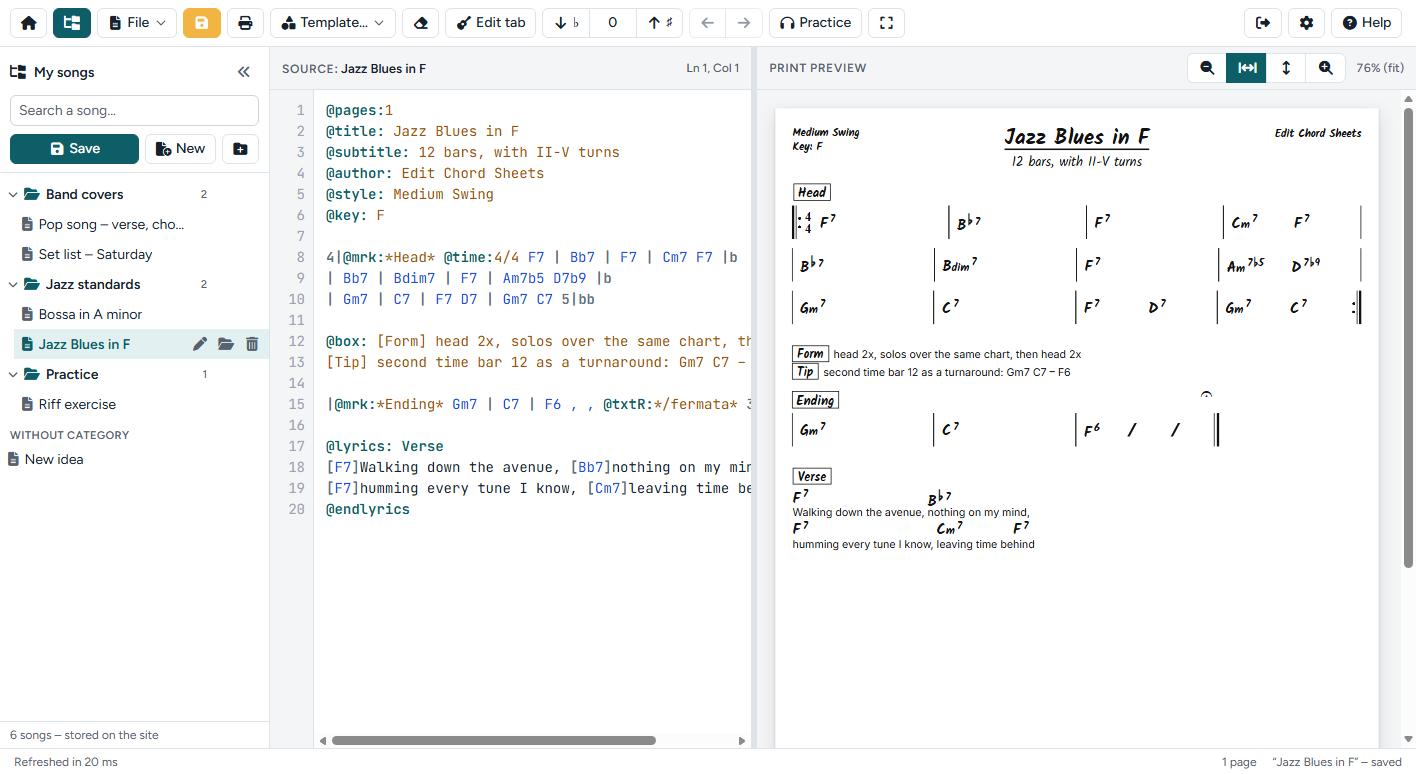
- Toolbar (top): all actions, see below.
- My songs (left, Pro): your songs and categories, stored with your account.
- Source (middle): the text of the chart, with line numbers and colours for the notation. The name of the open song is shown after Source:; the position of the cursor is shown on the right.
- Print preview (right): the chart exactly as it will be printed. Drag the bar between the text and the preview to make either side wider.
- Status bar (bottom): messages, the number of pages and whether the song is saved. When the text contains a mistake, a message shows here; click it to see all messages and jump to the line.
On a phone the panes are stacked and the toolbar folds into a menu button (☰).
The toolbar

| Button | What it does |
|---|---|
| Back to setlists | Only when you opened the editor from Setlists: back to the screen you came from. With unsaved changes in My songs the editor asks to Save, Don't save or Cancel first. |
| Home | Back to the home page of the site. |
| My songs | Show or hide the list of your songs (Pro). |
| File | Save, open, import, print and export: see File menu. |
| Save | Save the chart: in My songs (Pro) or as a .txt file (Ctrl+S). |
| Print the chart, or save it as a PDF from the print dialog (Ctrl+P). | |
| Refresh | Redraw the preview (Ctrl+Enter). Only shown when Refresh automatically while typing is off in the settings; File › Refresh and Ctrl+Enter always work. |
| Template… | Insert a template at the cursor (Pro): see Templates. |
| Clear | Empty the editor. Ctrl+Z brings the text back. |
| Edit tab | Edit the tab block at the cursor in the visual tab editor (Pro). |
| ↓♭ 0 ↑♯ | Transpose the song at the cursor a semitone down or up (@transpose:). The number shows how far it is from the original; click it to go back to 0. |
| ← → | Move the selected chords to the left or right (Alt+← / Alt+→). |
| Player | The Spotify player with loops. Only shown when the chart has a @spotify: line (Pro). |
| Practice | The practice player for your own audio files (Pro). |
| Full screen | Use the whole screen for the editor. Click again (or press Esc) to leave full screen. |
| Log out | On the right: log out of your account (only when you are logged in). You will go to the home page. |
| ⚙ | Settings: see Settings. |
| Help | The notation reference in a side panel (F1). |
Buttons for features that are not part of your plan are not shown.
File menu
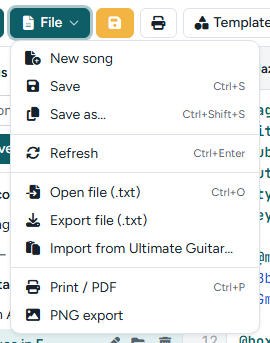
- New song, Save (Ctrl+S) and Save as… (Ctrl+Shift+S): for My songs (Pro).
- Refresh: redraw the preview (Ctrl+Enter). Only needed when automatic refresh is off, for example for a very large chart on a slow device.
- Open file (.txt) (Ctrl+O): open a chart from your device. With My songs, the text opens as a new, unsaved song.
- Export file (.txt): download the text of the chart to your device. A .txt file is small and opens in any text editor.
- Import from Ultimate Guitar…: convert a song with the chords above the lyrics (Pro), see below.
- Print / PDF (Ctrl+P): print the chart, or choose Save as PDF in the print dialog of your browser.
- PNG export: save the chart as an image, for example to send it in a chat. The resolution is a setting.
- Install as app: only shown when your browser offers it, see App and offline.
Without an account, the editor keeps your latest text as a draft in your browser, so it is still there when you come back. Save a .txt file to keep a chart for good.
My songs Pro
With a Pro account, your songs are stored on the site with your account, so they are ready on every device where you log in. Only you can see them.
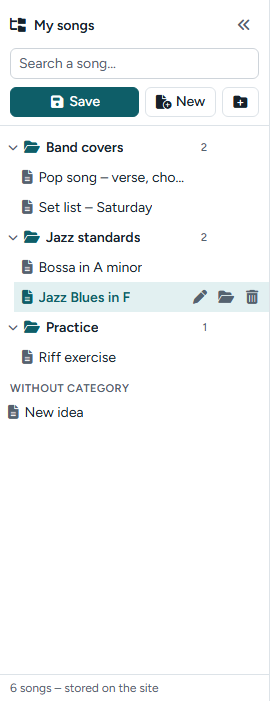
- Open a song: click it. The song that is open is highlighted.
- Search: type a part of the name in the search field.
- Save (Ctrl+S): save the open song. A new song asks for a name and a category first.
- New: start a new, empty song.
- New category (the folder button): add a category. Categories are always at the top; songs without a category are listed under Without category.
- Rename, move, delete: hover over a song (or tap it on a touch screen) for the pen, the folder and the bin. You can also drag a song onto a category.
- Categories: click the arrow to fold a category in or out. Rename or delete it with its buttons. When you delete a category, its songs are kept: they move to Without category.
- Width: drag the right edge of the panel to make it wider or narrower; the button « hides it.
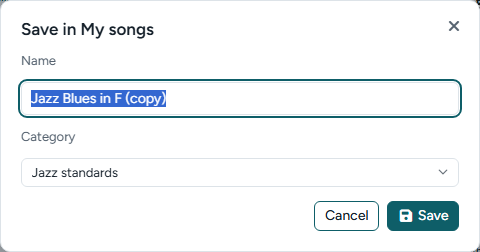
Names are unique. When a song with the same name already exists, the editor asks whether to overwrite it or to choose another name. Unsaved changes are never lost by accident: when you open another song or start a new one, the editor asks to Save, Don’t save or Cancel. A dot (●) next to the song shows that it has unsaved changes.
Templates Pro
Template… puts a ready-made piece of text at the cursor: a header with all fields, a section with a repeat and endings, a 12-bar blues, guitar and bass tab, chord diagrams, a lyrics block, a complete example and more. The menu is one list, in the order of the template file. Choose an item, then change it to your song.
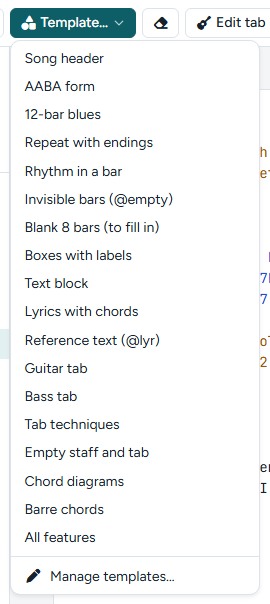
You can also make the Template menu your own: choose Template… › Manage templates….
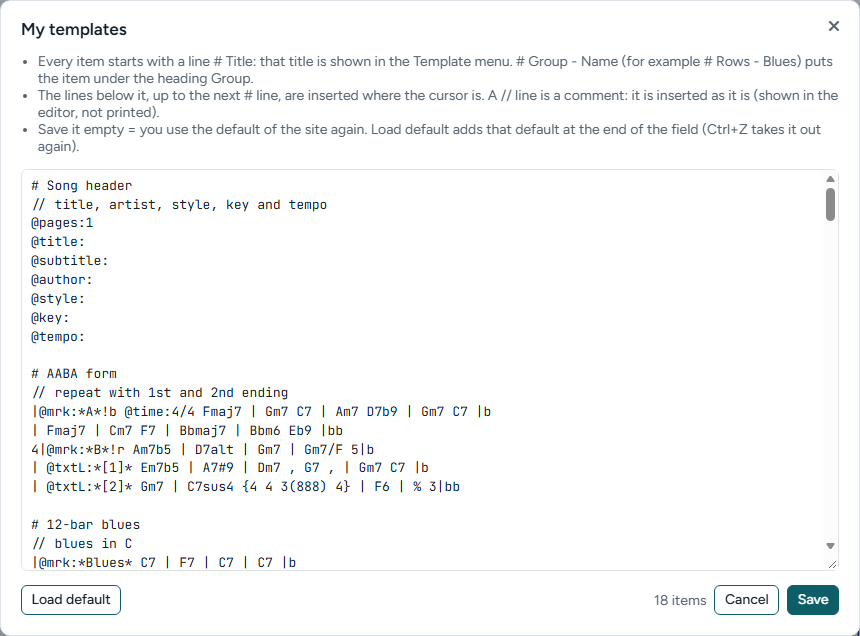
- Every template starts with a line
# Title. That title is shown in the Template menu, for example# 12-bar blues. Write# Group - Nameto put items under a heading in the menu. - The lines below it, up to the next
#line, are inserted at the cursor. - A
//line is a comment: it is inserted as it is, and shown in the editor but not printed. - Load default adds the templates of the site at the end of the field, so you can start from those. Ctrl+Z takes them out again.
- The format is checked while you type; mistakes are listed with their line number and nothing is saved until they are fixed.
- Save the field empty to use the templates of the site again.
Print preview
The preview shows the chart on paper (A4 or US Letter, a setting) and is redrawn while you type.
- Zoom: the buttons above the preview zoom out, fit the width, fit the whole page and zoom in. The current zoom is shown next to them.
- Select chords: click a chord to select it (click more chords to select several). Then transpose only those, or move them with ← →. Esc clears the selection.
- Jump to the text: double-click a chord or a block (text block, lyrics, text box, tab, chord diagrams, a row of bars) to go to it in the text. Click a tab to open it in the tab editor (Pro).
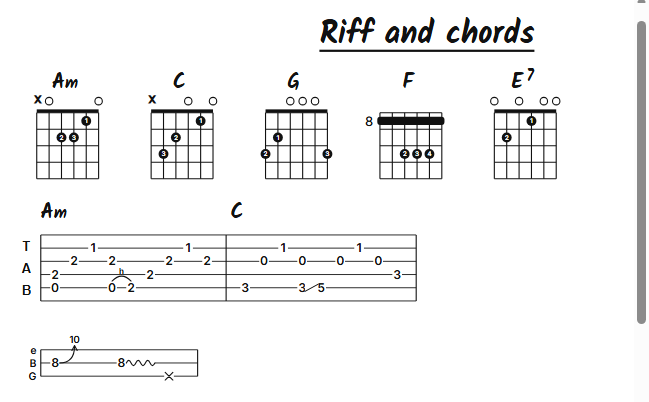
- Tabs and chord diagrams: ASCII tab is drawn as tablature, with the fret numbers on the lines and symbols for hammer-ons, slides, bends and vibrato.
@diagrams:draws guitar chord diagrams with the chord name above them. See the notation guide.
Transpose and move chords
The arrows ↓♭ and ↑♯ transpose the song the cursor is in a semitone down or up, up to an octave. They write a line @transpose: +2 below the title of the song: the text keeps its own key, and the preview, print, PDF and PNG show the song transposed. Chords in lyrics, chord diagrams and the key in the header move along; notes in quotes do not. With several songs in one file, every song has its own @transpose:. The number between the arrows shows the value for the song at the cursor; click it to go back to the original key.
When chords are selected in the preview, the arrows change only those chords, in the text itself.
The arrows ← and → move the selected chords a little to the left or right within their bar, for a better fit above the beat.
Import from Ultimate Guitar Pro
Copy a song with the chords above the lyrics, for example from Ultimate Guitar, and choose File › Import from Ultimate Guitar….
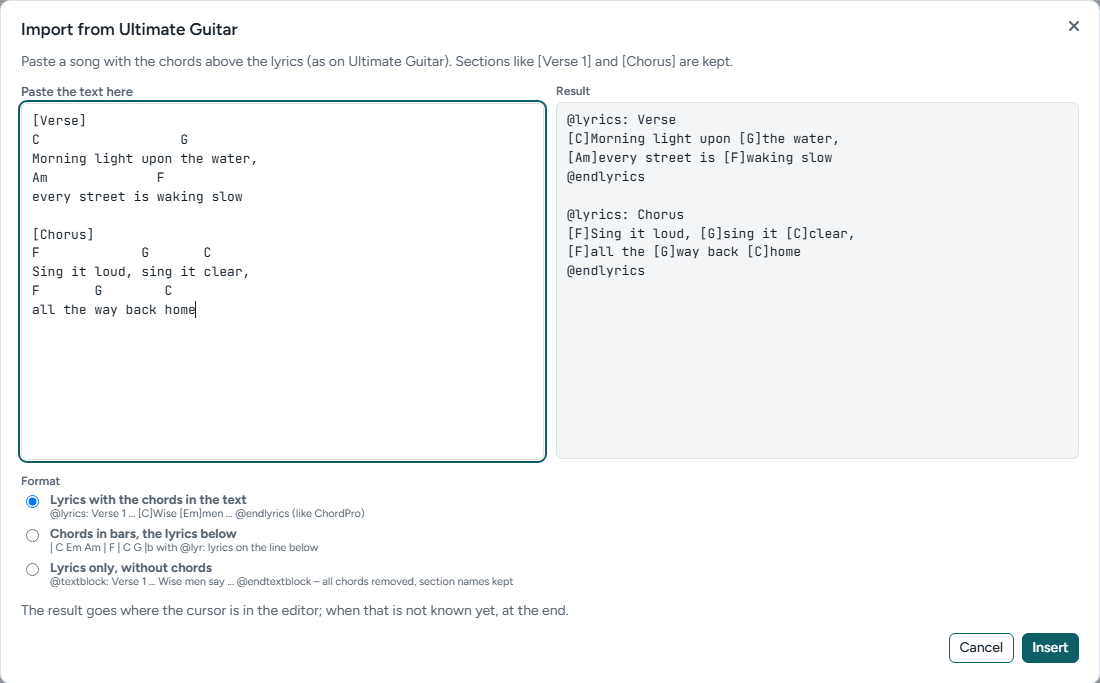
- Lyrics with the chords in the text: every section becomes a lyrics block with the chords in square brackets.
- Chords in bars, the lyrics below: every section becomes rows of bars with a rehearsal mark, and the lyrics as reference text below them. Set how many characters of text make one bar.
- Lyrics only, without chords: all chords are removed; every section becomes a text block (
@textblock) with the section name, such as Intro or Chorus, as its title. - Section names such as [Verse 1] and [Chorus] are kept. Insert puts the result at the cursor (or at the end).
Edit tab Pro
Put the cursor in a @tab block and click Edit tab. Without a tab block at the cursor, a new one is made.
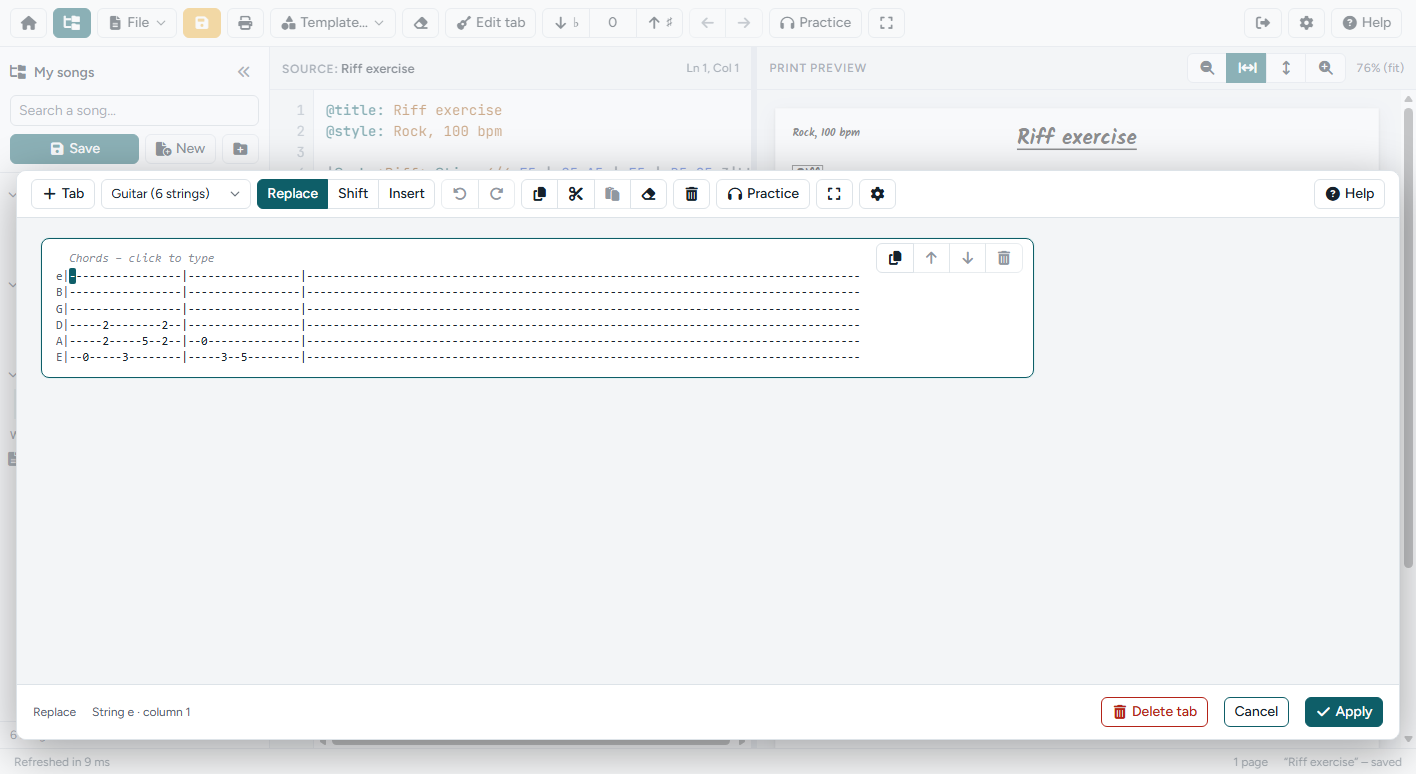
- Click a position on a string and type the fret number. The arrow keys move the cursor.
- Choose the instrument (guitar, or 4- or 5-string bass), and whether typing replaces, shifts or inserts.
- Add tab rows with + Tab; copy, cut, paste and clear a selection; type chord names above the tab.
- Apply writes the tab back into your chart. Delete tab removes the block.
Tab along with a recording. The tab editor opens as a panel above the player bars, so the Spotify player and the practice player stay in sight while you write. Open them with Player or Practice in the toolbar of the tab editor. Alt+Space plays and pauses, Alt+[ and Alt+] set a loop, without leaving the tab. After a click in a player bar, your typing goes straight back to the tab. The rest of the editor is dimmed until you click Apply or Cancel.
Spotify player Pro
Add a Spotify track to your chart with @spotify: and the link of the track (in Spotify: Share › Copy song link). The Player button appears in the toolbar and opens the Spotify player below the editor.
Add @loop: Solo 2:41-3:05 lines for the parts you want to practise. Choose a loop in the loop menu or with ◀ ▶; the player repeats it. A and B set a new loop at the current position. Playing needs a Spotify account; the player is only loaded when you open it.
On a phone or tablet the Spotify player does not work. Spotify only plays a 30-second preview in a mobile browser, so the loops, ◀ ▶ and A / B are left out there. The editor says so, with Open in Spotify to play the track in the Spotify app, and Practice player to practise with your own recording, with loops, speed and pitch. On a computer, log in to Spotify in the same browser for the whole track; without a login it also plays only the preview.
Practice player Pro
Practise with your own recordings: mp3, m4a, wav or ogg. Slow a part down without changing the pitch, change the pitch without changing the tempo, and repeat a loop as often as you need.
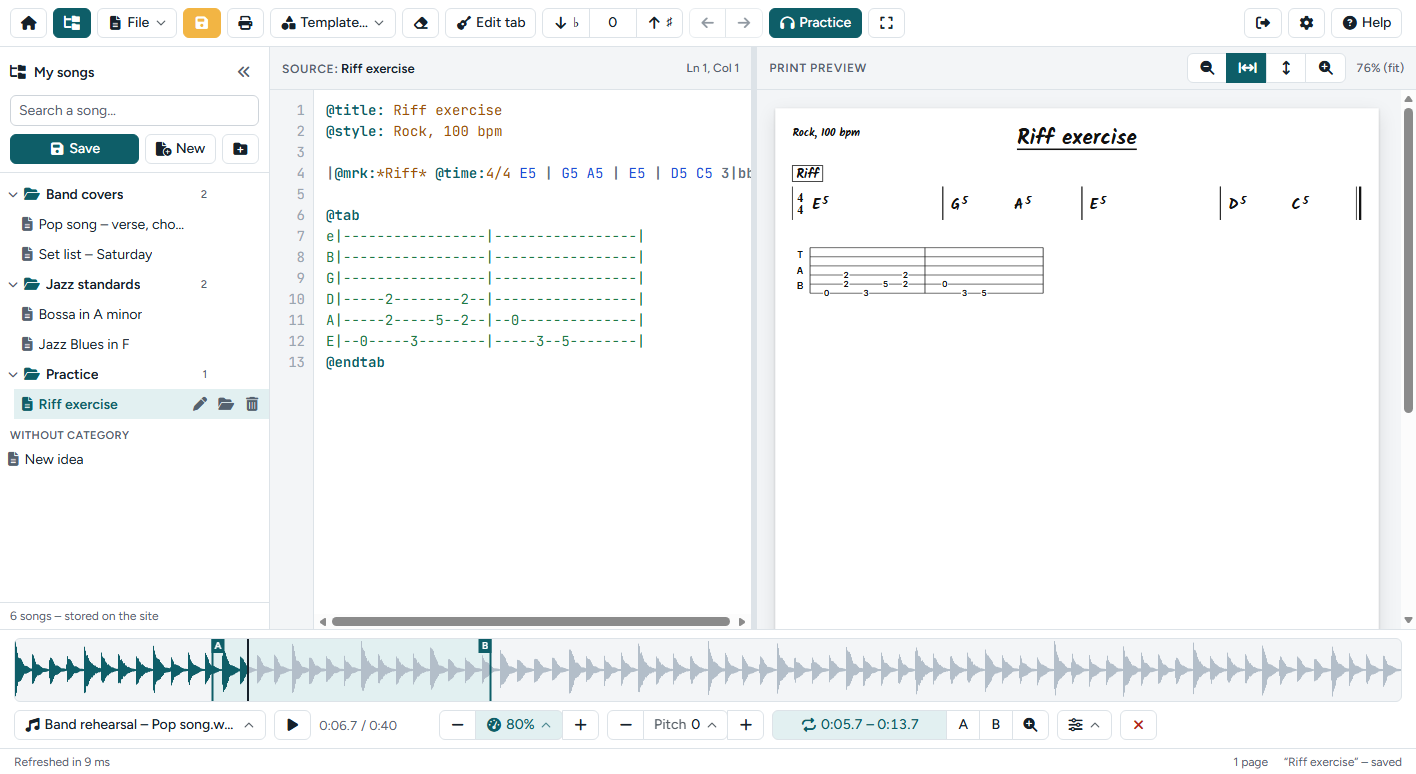
- Waveform: click to go to a position, drag to make a loop, drag the A and B handles to change it. Ctrl+mouse wheel zooms, Shift+drag scrolls.
- Speed: 25 to 125 % without changing the pitch. Use − and + or the menu for a preset.
- Pitch: up to 12 semitones up or down, and fine tuning of ±50 cents, without changing the tempo.
- Loop: A and B set the start and end at the current position; the loop button turns the loop on or off.
- Practice aids (the sliders button): a pre-roll before A, a pause between repetitions, and the speed trainer, which starts slowly and plays a little faster each time up to your target speed.
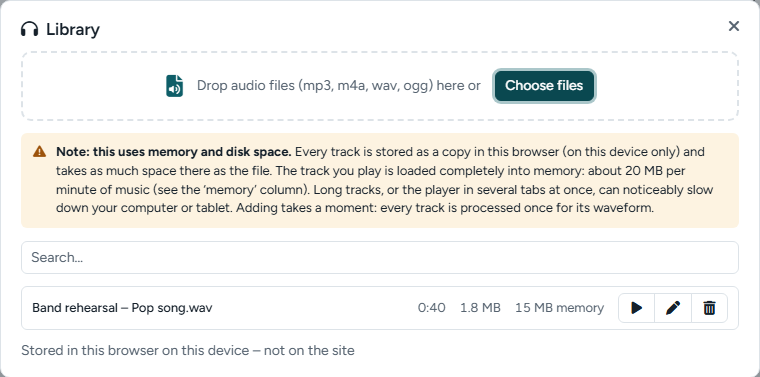
Add tracks in the library (the track menu on the left of the bar), or drop audio files on the player. Tracks are stored as a copy in your browser, on this device only; they are never uploaded to the site. The track that is playing is held in memory (about 20 MB per minute of music). For every track, the loop, speed, pitch and position are remembered.
| Keys | Action |
|---|---|
| Alt+Space or Alt+P | Play / pause, also while you type and in the tab editor. Space alone works when the cursor is not in the text |
| Alt+[ / Alt+] | Set A / B at the current position; B starts the loop |
| Alt+\ | Loop on / off |
Settings
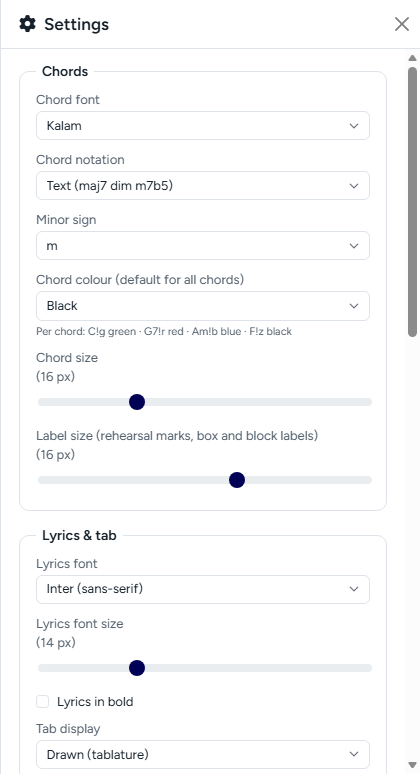
- Chords: the handwritten chord font, jazz symbols (△ ° ø) or text (maj7 dim m7b5), the minor sign, the default chord colour, the chord size and the label size (rehearsal marks and the labels of text boxes, lyrics and text blocks).
- Lyrics & tab: the font, size and weight of lyrics; tab display (drawn as tablature or as text) and the font, size and line spacing of ASCII tab.
- Chord diagrams: the size of the diagrams and finger numbers in the dots (on or off).
- Page & spacing: paper size (A4 or US Letter), the space between rows, the space between blocks (text boxes, lyrics, text blocks, tab, chord diagrams, staves) and the bottom margin after
|band|bb. - Output & app: PNG resolution, refresh while typing, autocomplete, syntax colours in the editor and a dark interface.
Settings are kept in your browser and apply to all your charts. Reset settings goes back to the defaults.
Install as an app, and offline
Install the editor as an app on your phone, tablet or computer: it gets its own icon and opens without the bars of the browser. Choose File › Install as app when your browser offers it, or use the menu of the browser (on Android: Add to Home screen or Install app). On an iPhone or iPad, tap Share in Safari and then Add to Home Screen.
The editor also opens without internet, once you have used it with a connection: writing, the print preview, printing and the draft in your browser all work. My songs, the Spotify player and the import from Ultimate Guitar need a connection.
With Setlists it is one app: Sheet Groove holds the editor and Setlists. In Setlists, ⋮ › Sheet Groove editor opens the editor, and Back to setlists in its toolbar takes you back.
The help panel
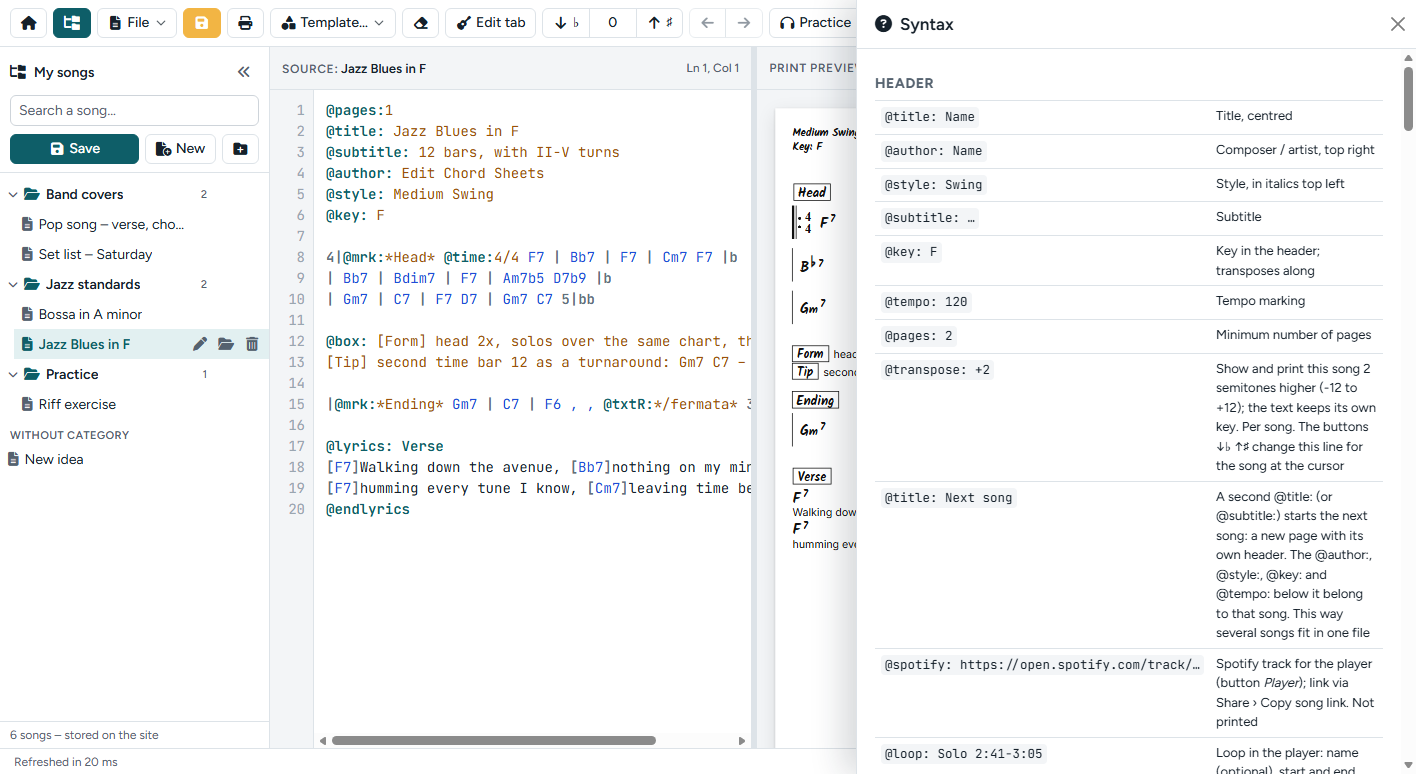
The help panel lists every symbol of the notation, so you never have to leave the editor. It is the same reference as the notation guide.
Keyboard shortcuts
| Keys | Action |
|---|---|
| Ctrl+Enter | Refresh the preview |
| Ctrl+S | Save (My songs, or a .txt file without an account) |
| Ctrl+Shift+S | Save as… (My songs) |
| Ctrl+O | Open a .txt file |
| Ctrl+P | Print / PDF |
| Ctrl+Z | Undo |
| F1 | Help panel |
| Alt+↑ / Alt+↓ | Move the line (or selection) up / down |
| Shift+Alt+↑ / Shift+Alt+↓ | Copy the line (or selection) up / down |
| Alt+← / Alt+→ | Move the selected chords |
| Esc | Clear the chord selection |
| Alt+Space | Play / pause the practice player (or the Spotify player when the practice player is closed) |
Account and logging out
Log in with Login at the top of the site. In the editor, the button next to Home logs you out; you return to the home page. Change your name, e-mail address or password under Edit profile. To delete your account and all your songs, contact us.