How to use Setlists on your own and with a band: your songs and their PDF's, setlists, the stage viewer and offline use.
Setlists is part of Pro; the members of a band use it with a free account. Creating a band needs a band plan, which includes Pro.
Getting started
- Log in and open Setlists.
- Tap + Song, add a PDF (or drag it onto the screen) or a chord sheet, and tap Save.
- Tap + Setlist, then Add songs.
- Tap Play.
The screen
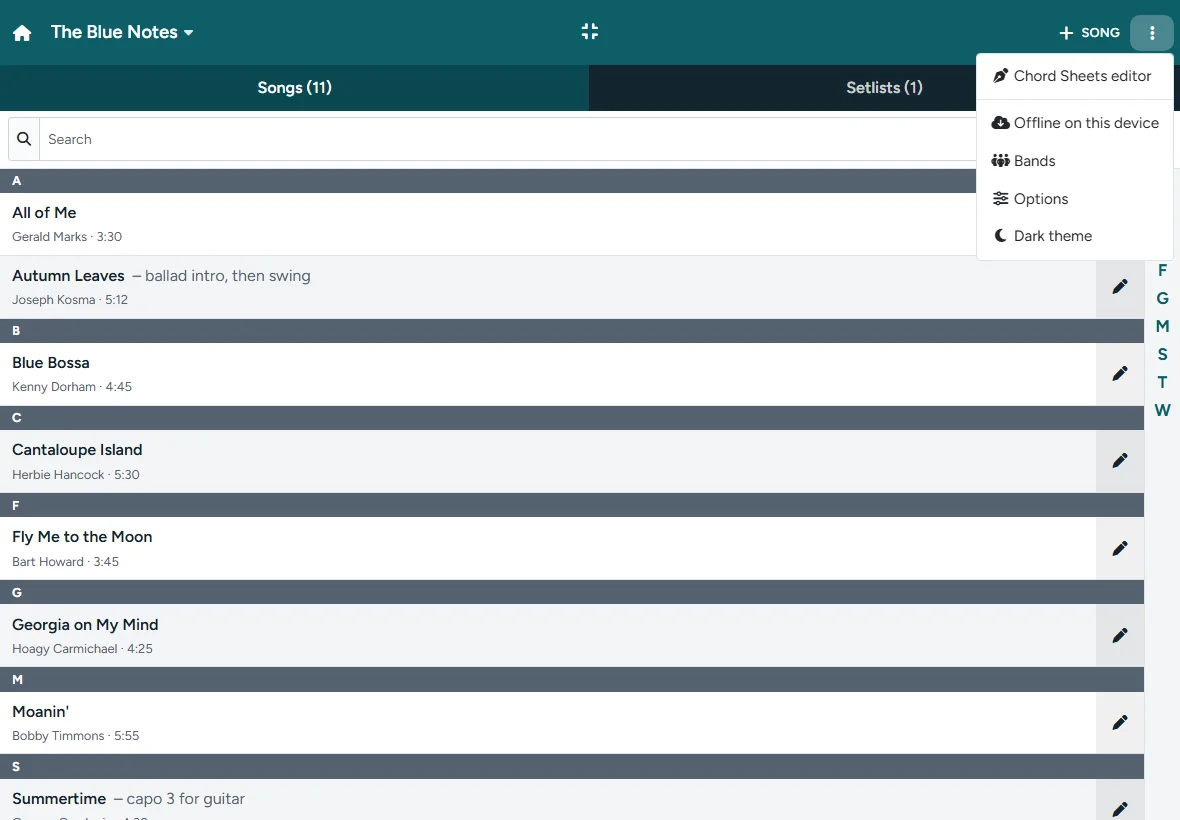
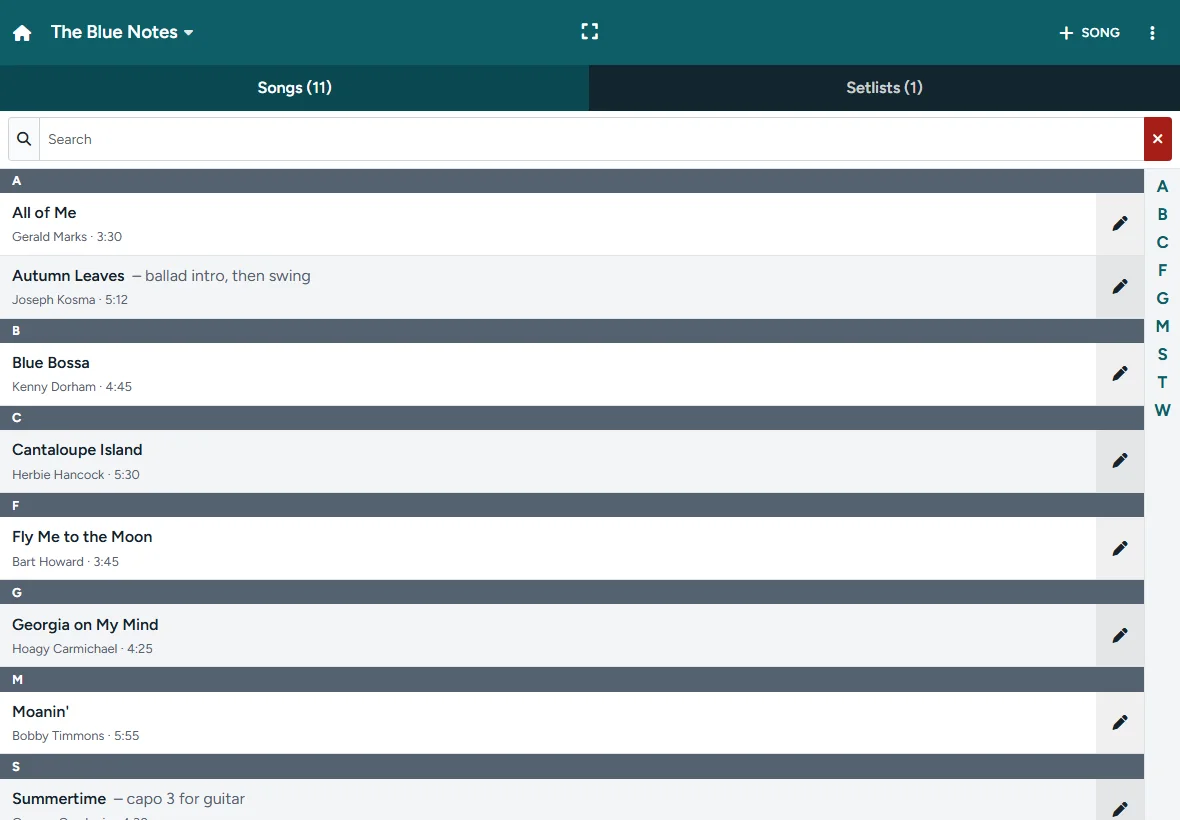
- The library at the top left: Personal, or the name of a band. Everything below it belongs to that library.
- + Song on the Songs tab and + Setlist on the Setlists tab add a new one; on a phone it is the + button.
- The button in the middle of the bar switches full screen on and off.
- ⋮ opens the menu: Sheet Groove editor (when the site has the editor), Offline on this device, Bands, Options and the light or dark theme.
- The tabs Songs and Setlists, with a search field and a letter index on the right to jump. On a low screen, such as a phone on its side, the index shows every other letter with dots between them: slide along it to reach every letter.
- The house button goes back to the website.
Songs and PDF's
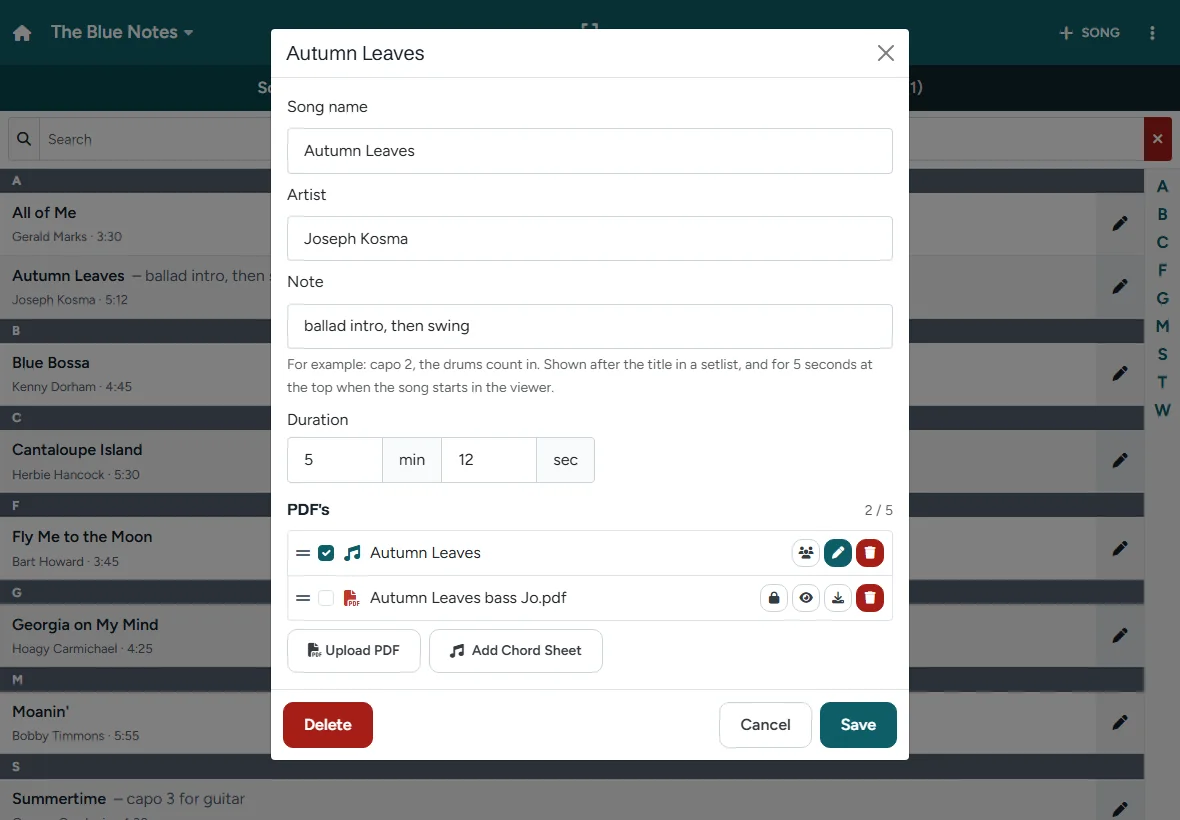
Tap + Song, fill in the song name, the artist, a note and the duration (minutes and seconds; the duration adds up in a setlist). The note, for example capo 2 or drums count in, is shown after the title and for 5 seconds at the top of the viewer when the song starts.
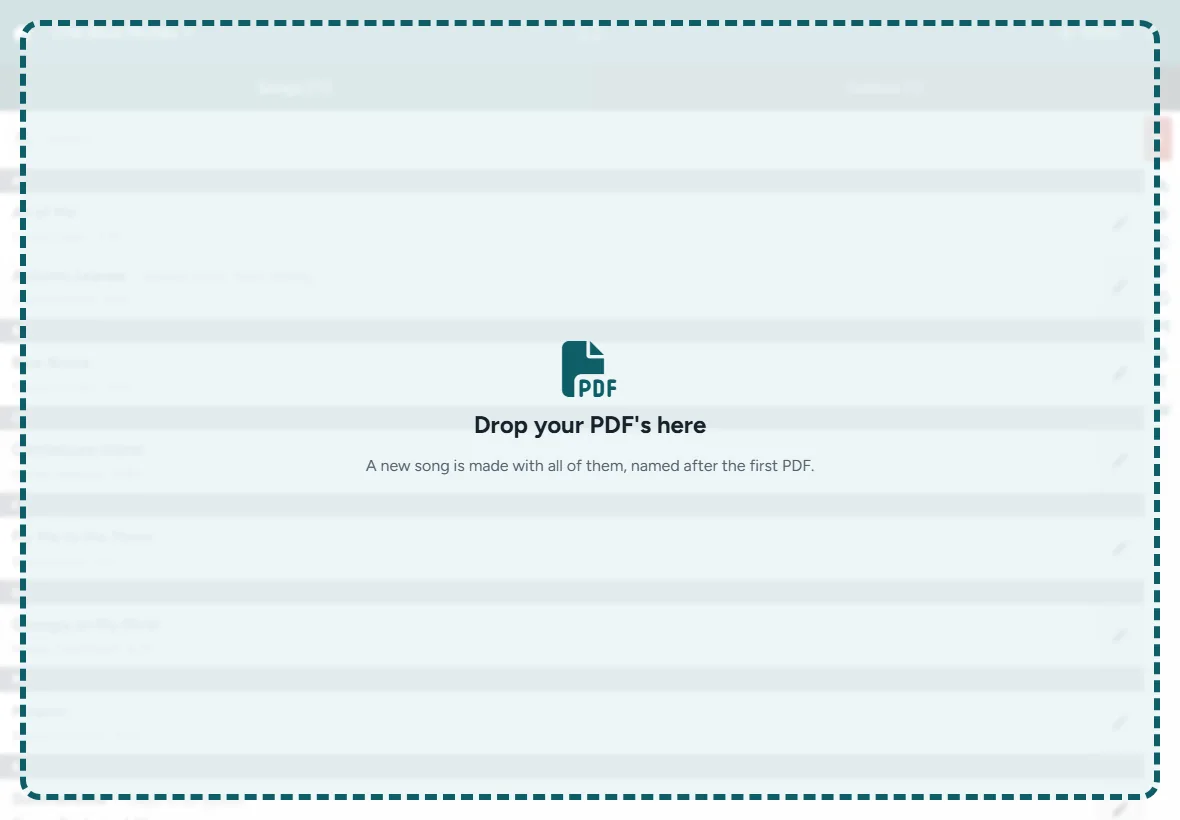
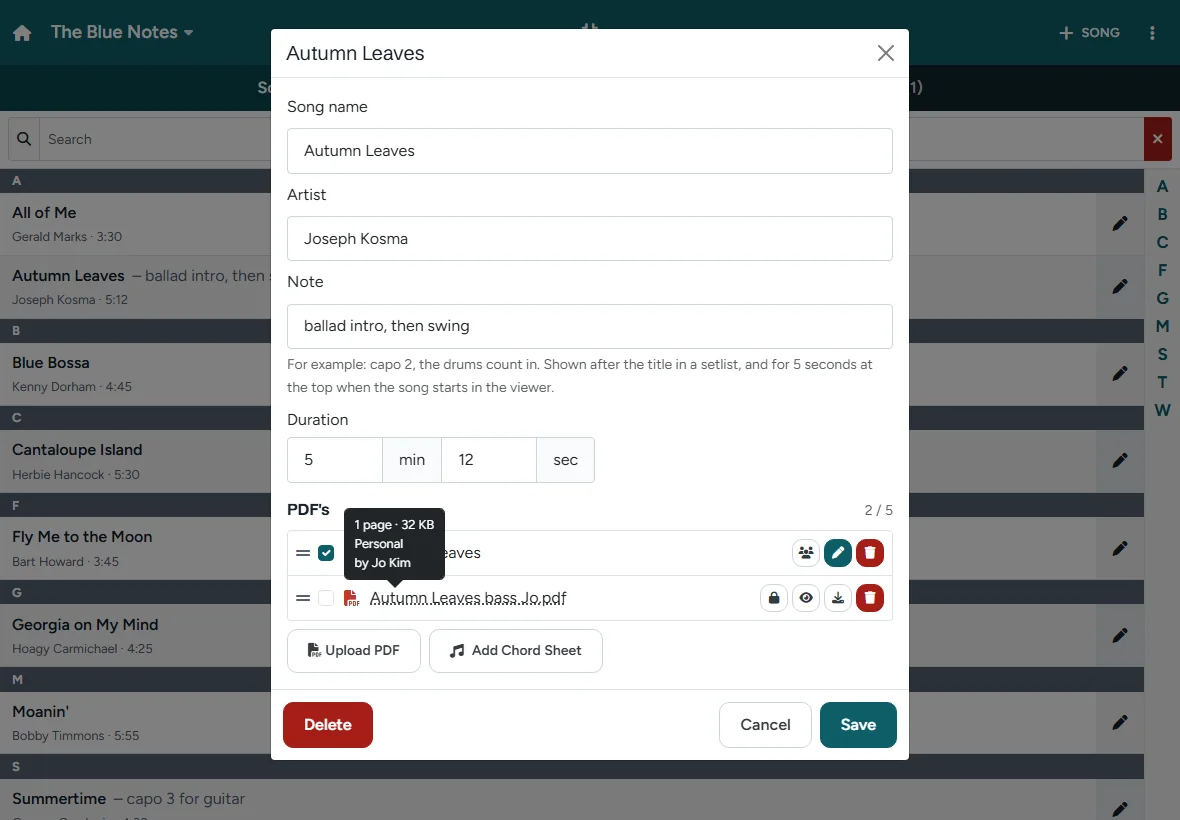
Then tap Upload PDF for each file, or drag the PDF's onto the screen: while you drag, the whole screen is a drop zone. You can add several PDF's at once; a new song without a name gets the name of the first PDF. A song can have several PDF's, for example the full chart and the bass part; drag them in the order you want them in the viewer. Tap the name of a PDF for its details: pages, size, and in a band whether it is shared or personal and who added it.
Tap Save to keep the song. A PDF you add is stored at once, but it is Not saved yet (an orange dot before its name) until you tap Save: Cancel removes it again, and a new song goes with it; closing the song with × or Esc asks first. A PDF that was never saved, because the tab was closed, is removed after 24 hours. A member of a band who cannot change the song closes it with Done, which keeps the PDF's they added.
On the Songs tab you can also drop PDF's straight onto the list: a new song opens with them, named after the first PDF.
Tap a song in the list to play it; the pencil on the right opens it to edit. In the song, Download gets a PDF back, and Download all files (zip) all of them. Deleting a song also takes it out of the setlists it is in; the app tells you which ones first.
Chord sheets in a song
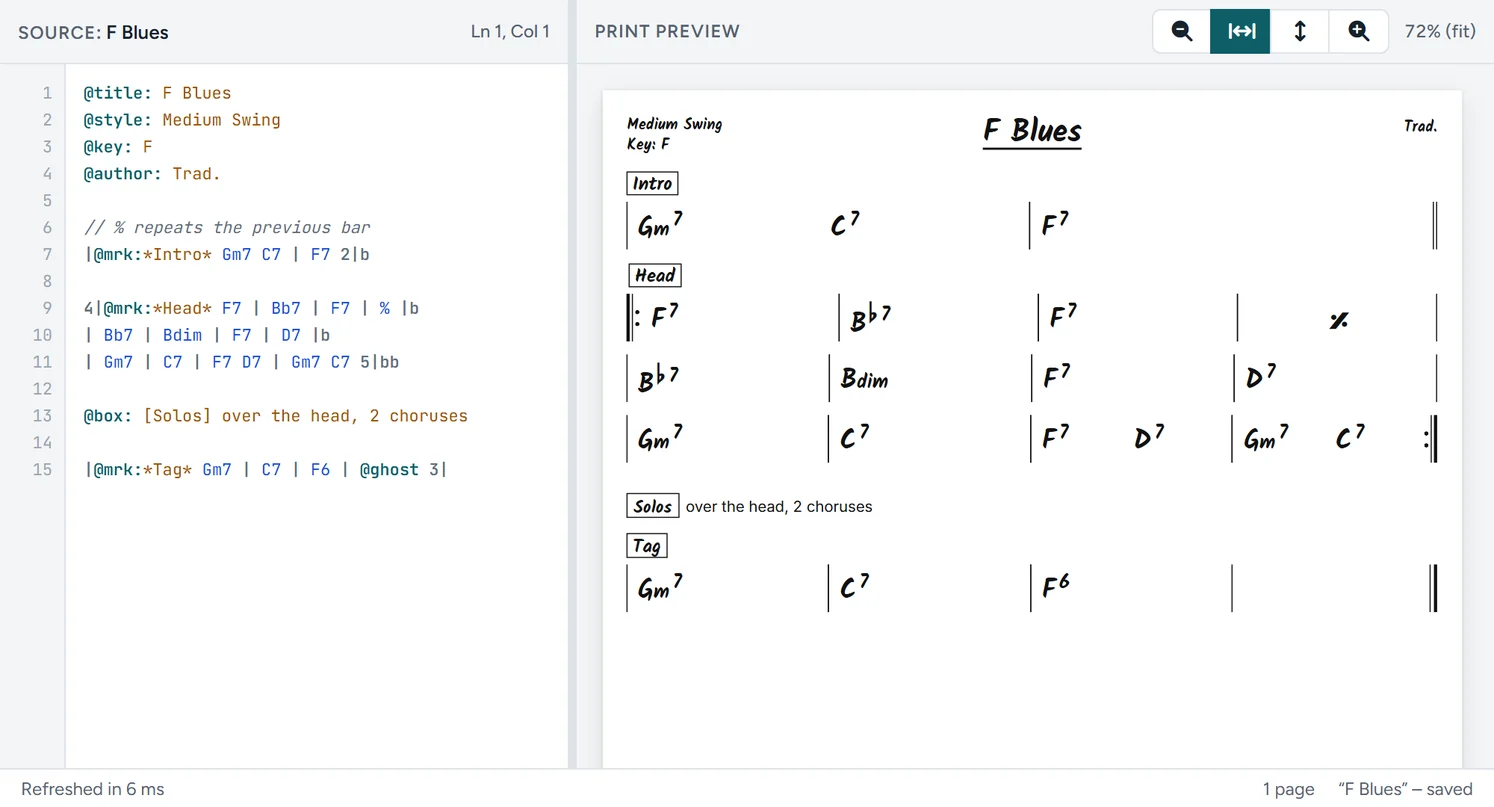
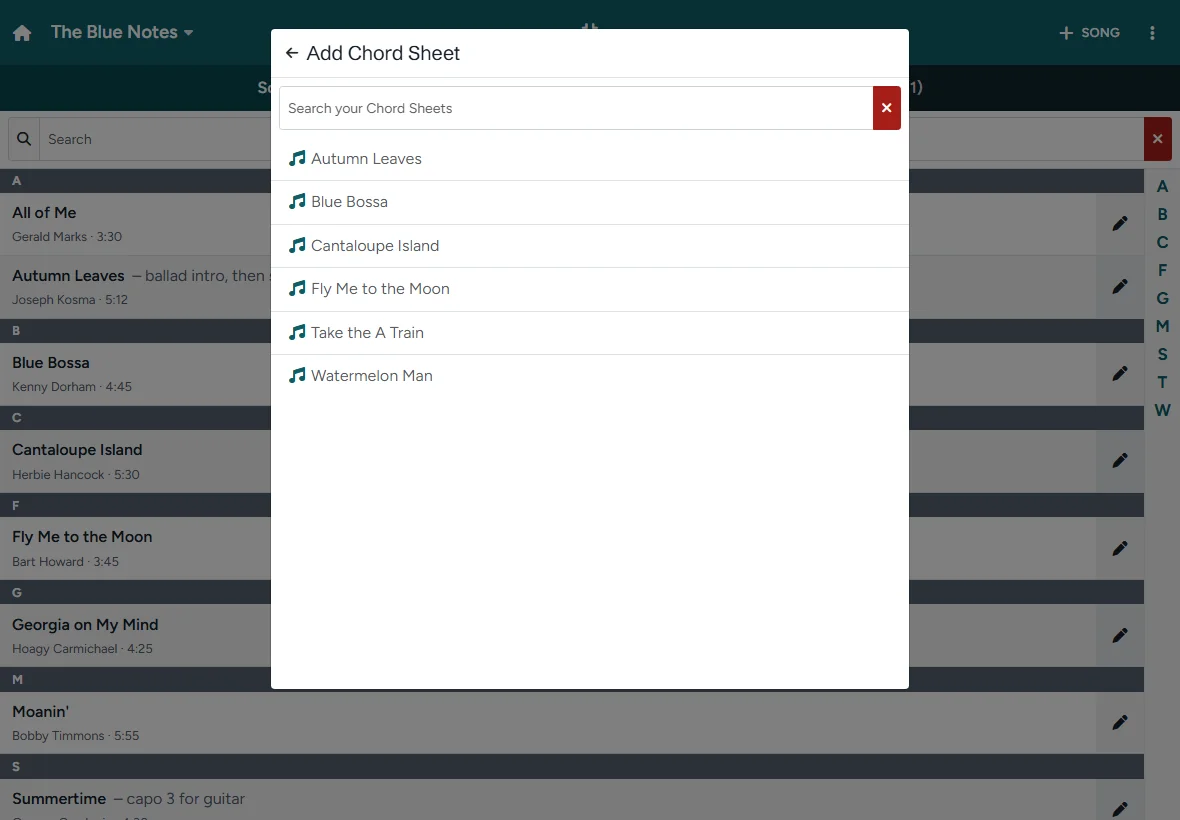
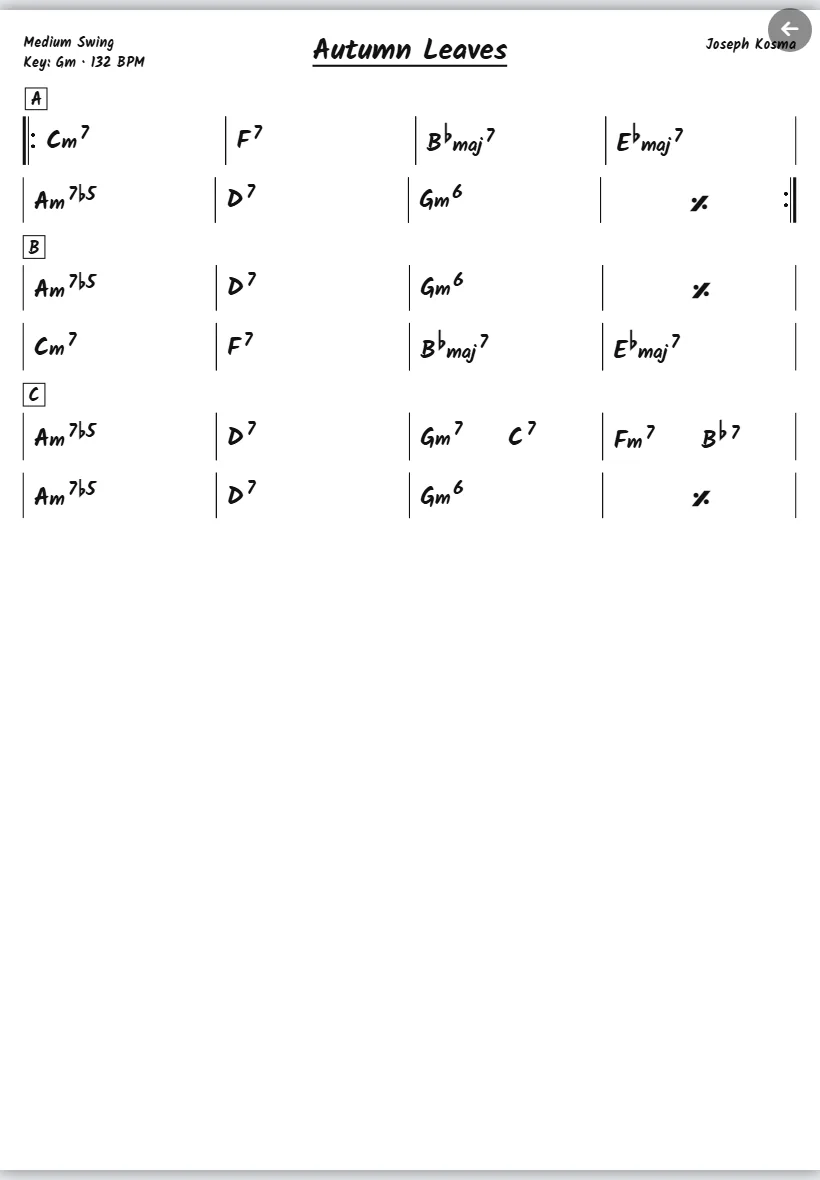
Add Chord Sheet in a song shows the songs of your My songs in the same dialog, with a search field; the arrow at the top goes back to the song. Pick one and it becomes a part of the song, just like a PDF. It is drawn live in the viewer, so it is always the latest version and sharp at every size. Edit opens it in the editor; its Back to setlists button returns here. ⋮ › Sheet Groove editor opens the editor without a song.
Setlists
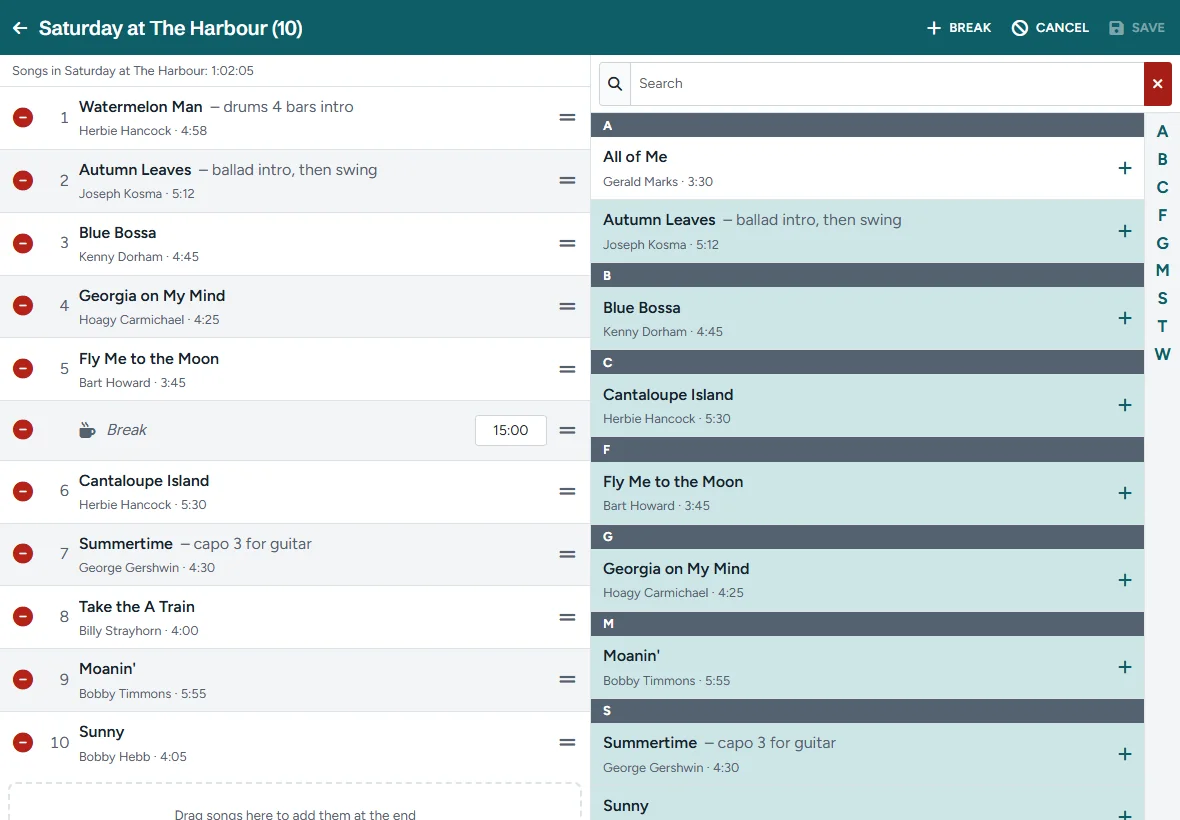
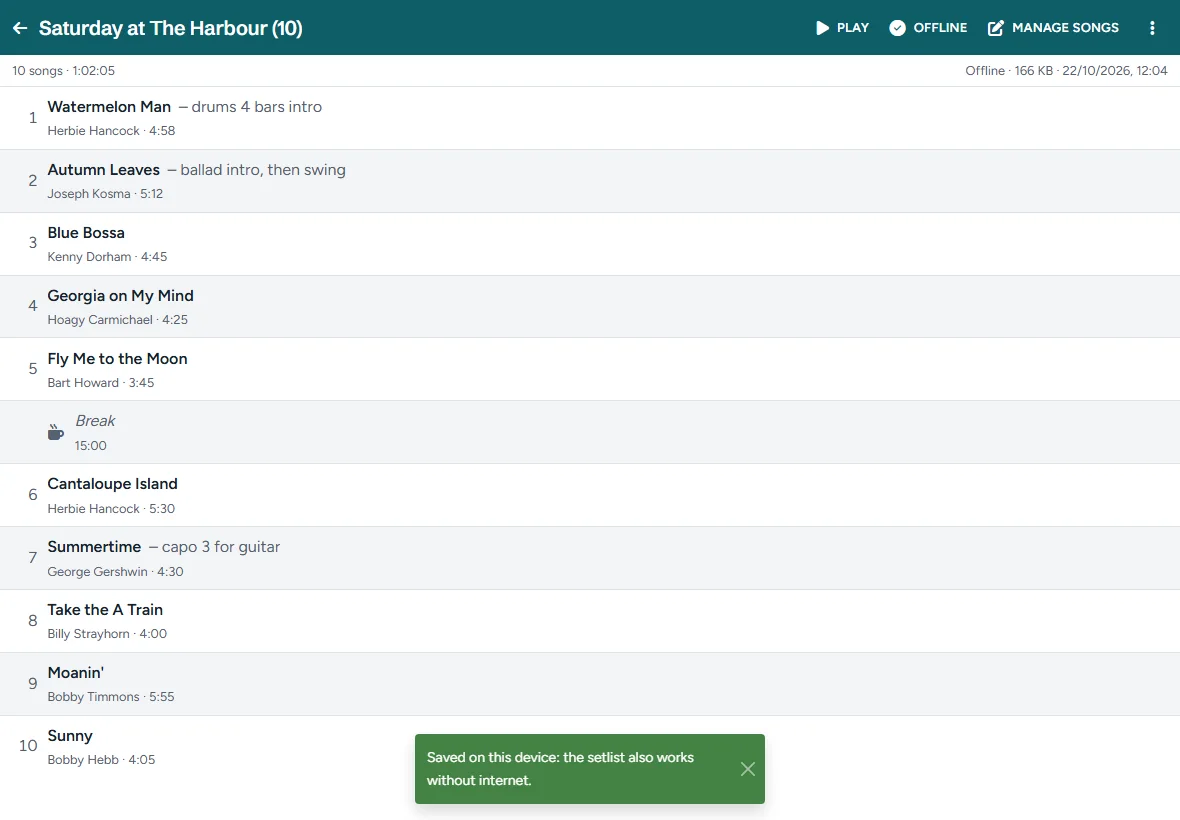
Tap + Setlist and give it a name. In the setlist, Add songs (Manage songs once it has songs) opens the editor: the songs of the setlist on the left, all your songs on the right. Tap a song or drag it in, drag at the handle to change the order, and remove it with ⊖. Drop a song on the space at the end of the list to add it at the end. Break adds a break with its duration. Adding a song a second time asks first. The setlist shows the number of songs and the total time.
The ⋮ menu of a setlist has Rename, Copy and Delete. Deleting a setlist keeps its songs.
The stage viewer
Play in a setlist opens the viewer with all its pages, song after song; tap a song in the setlist to start there. A song tapped in the Songs list plays on its own. The note of a song is shown at the top for 5 seconds when it starts.
| To | Do |
|---|---|
| Next page | Swipe left, tap the right quarter of the screen, → ↓ PageDown or Space |
| Previous page | Swipe right, tap the left quarter, ← ↑ PageUp or Shift+Space |
| Zoom | Pinch with two fingers, double tap, Ctrl + mouse wheel, or + and −; 0 resets. Zoomed in, one finger moves the page |
| First or last page | Home or End |
| Show the bar | Tap the middle of the screen: the song list to jump, and where you are |
| Close | The round button at the top right, the back button of the browser, or Esc |
A page-turn pedal works when it sends the arrow keys, PageDown/PageUp or Space, which is what most Bluetooth pedals do. A song with more PDF's gets small numbered buttons at the top left that jump to each of them. Breaks get a page of their own. The screen stays on while the viewer is open.
Offline and installing
In a setlist, tap Offline to save it on this device, with all its PDF's and chord sheets. It then plays without internet. If the setlist changes later, it shows Changed since saved: tap Update. Without a connection you see your library as it was last loaded; changes need a connection.
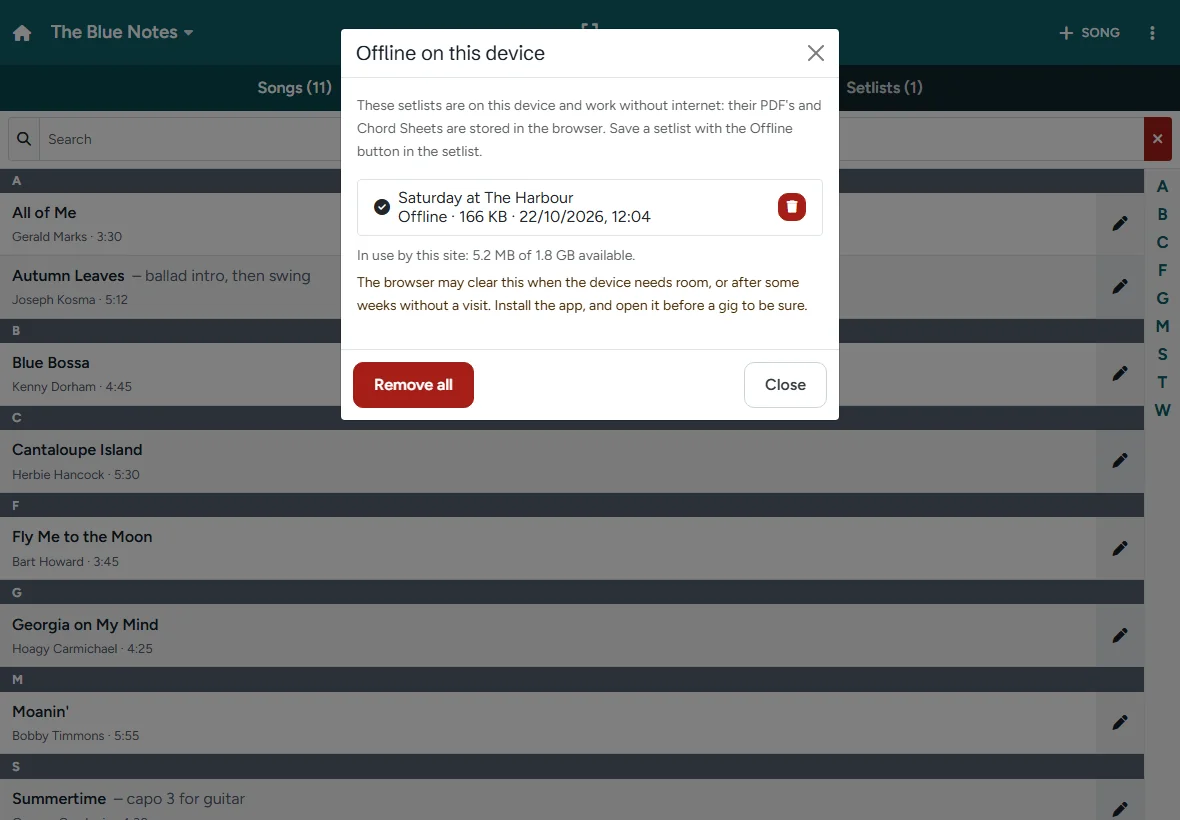
⋮ › Offline on this device lists the saved setlists and the space they use, and removes them from the device (they stay on the site). It also says whether the browser keeps them for good, or may clear them when the device needs room or after some weeks without a visit. There you can also install the app: it then opens full screen and keeps its offline setlists. When the site also has the chord chart editor, the app holds both. On an iPad or iPhone, tap Share in Safari and then Add to Home Screen.
Options
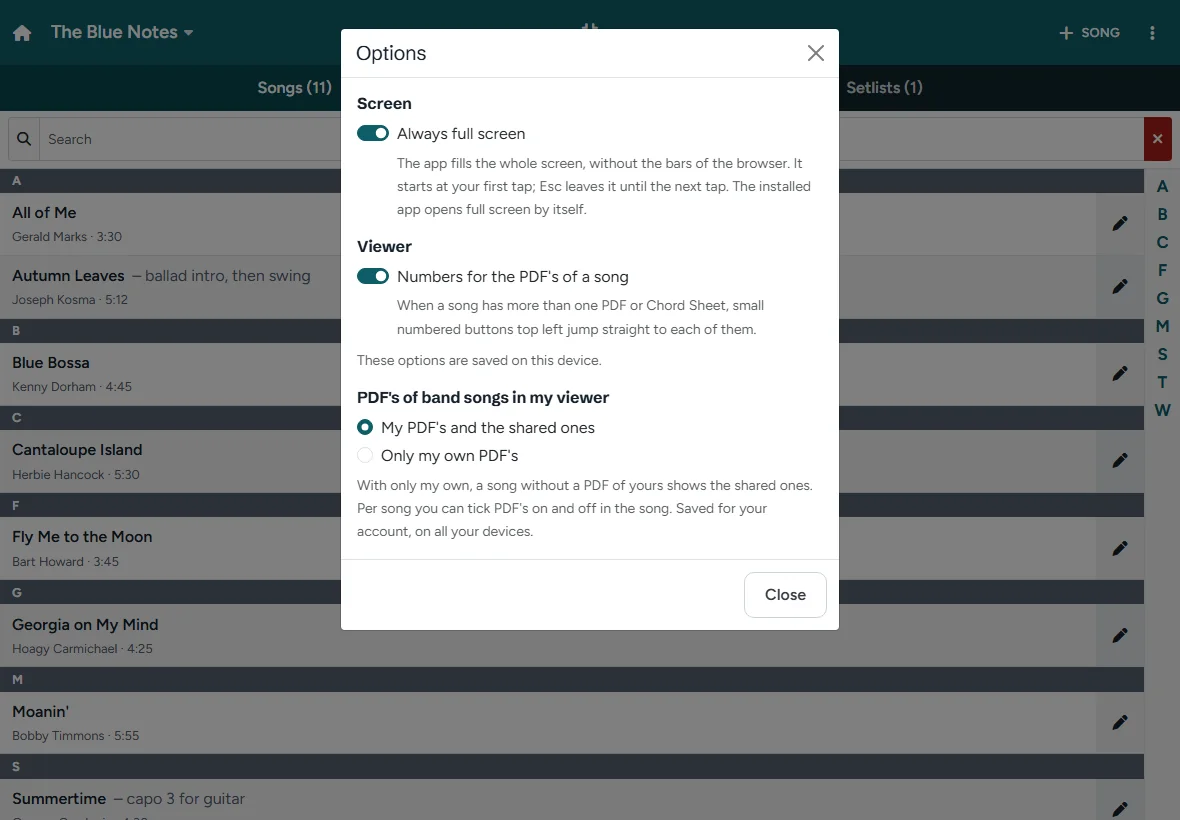
⋮ › Options: Always full screen (on by default) fills the whole screen from your first tap; Esc leaves it until the next tap. For the viewer, Numbers for the PDF's of a song shows the numbered buttons. These options are saved on this device. In a band you also choose which PDF's your viewer shows, see Shared and personal PDF's.
Bands
⋮ › Bands lists your bands. With a band plan you create a band there with Band. Open a band for its members, invitations, plan and use, and Songs and setlists to switch the library to the band. You switch back with the library at the top left.
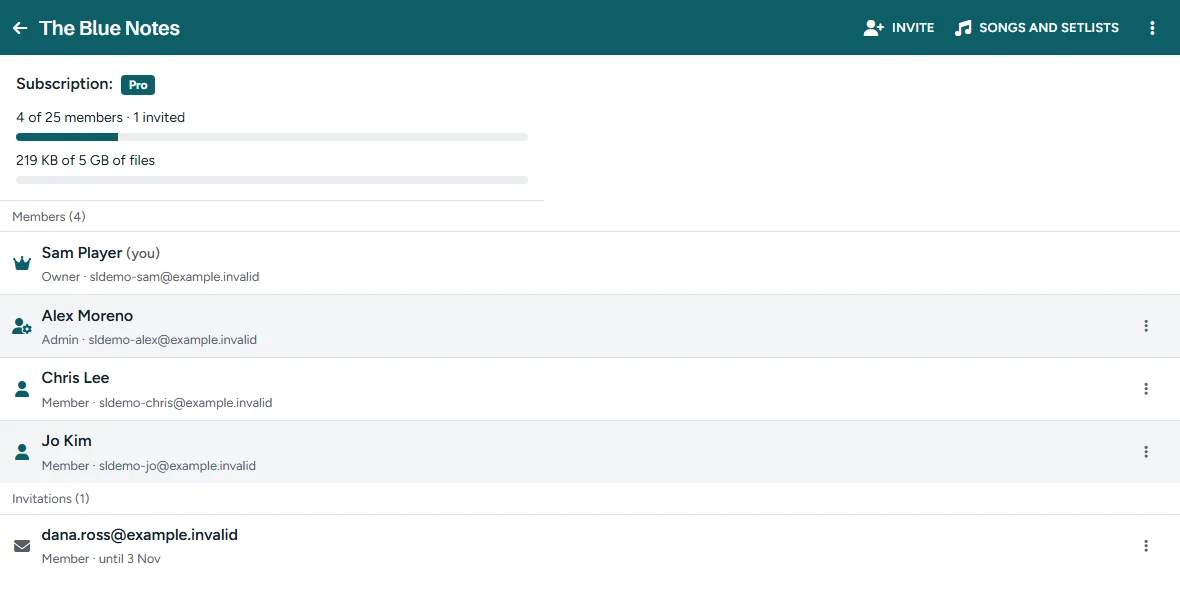
A band page shows how many members and how much storage the band uses, out of the maximum of its plan. The owner extends the plan with Extend the subscription.
Roles
| Role | Can |
|---|---|
| Owner | Everything an admin can, and: holds the band plan, hands the band over (Make owner) or deletes it. The owner cannot leave the band without handing it over first. |
| Admin | Add and edit songs, PDF's and setlists, share PDF's with the band, invite members, change roles and remove members. |
| Member | See and play the songs and setlists, save them offline, add PDF's of their own and choose what the viewer shows. |
Change a role with the actions next to a member: Make admin, Make member or Remove from the band. A member can leave a band with Leave the band.
Invitations
On the band page, tap Invite, enter the e-mail address and choose the role, then Send invitation. The invitation is valid for 14 days. The musician opens the link and logs in with the account of that e-mail address; without an account, they first create one with that address and open the link again.
Open invitations are listed with their end date: Send again or Withdraw them there. If the mail cannot be sent, the app shows the personal link to share yourself. Open invitations count towards the maximum number of members.
Shared and personal PDF's
In a band song, every PDF is Shared (everyone sees it) or Personal (only the member who added it and the admins). What admins add is shared; what members add is personal. An admin can switch a PDF with Share with the band or Make personal.
Under ⋮ › Options › PDF's of band songs in my viewer you choose My PDF's and the shared ones or Only my own PDF's. With only your own, a song without a PDF of yours shows the shared ones. In a song, Show in my viewer ticks single PDF's on and off. This choice is saved for your account, on all your devices. When a member leaves the band, their personal PDF's are removed; the shared ones stay.
Editing at the same time
Only one person edits a song or a setlist at a time. When someone else is editing, the app says who and since when. You can take over after confirming; the other person can then no longer save. The lock ends when the editor closes, or after 15 minutes.
Band plan and limits
| Band plan | Members | Storage | Per year, Pro included |
|---|---|---|---|
| Band Basic + Pro | 6 | 1 GB | € 39 |
| Band Pro + Pro | 25 | 5 GB | € 59 |
- Members: the owner, the members and the open invitations. A full band takes no new invitations.
- Storage: all PDF's of the songs of the band, shared and personal. A full band takes no new uploads.
- Plan ended: nothing is deleted and the band can still play, but it takes no new members or files until the owner extends the plan.
Short answers to the questions we get most. Not listed? Get in touch.
General
What is Sheet Groove?
Three tools that work together: a chord chart editor that turns plain text into a print-ready lead sheet, Setlists with a stage viewer for your songs and PDF's, and Bands to share all of it with your band.
Do I need to install anything?
No. Everything runs in the browser on a laptop, tablet or phone. You can install the editor and Setlists as an app on your phone, tablet or computer, but that is optional.
Do I need an account?
Not for the editor: writing, printing and .txt files work without one. My songs, the practice tools and Setlists need Pro; the members of a band play its setlists with a free account.
The editor
Do I need to learn a programming language?
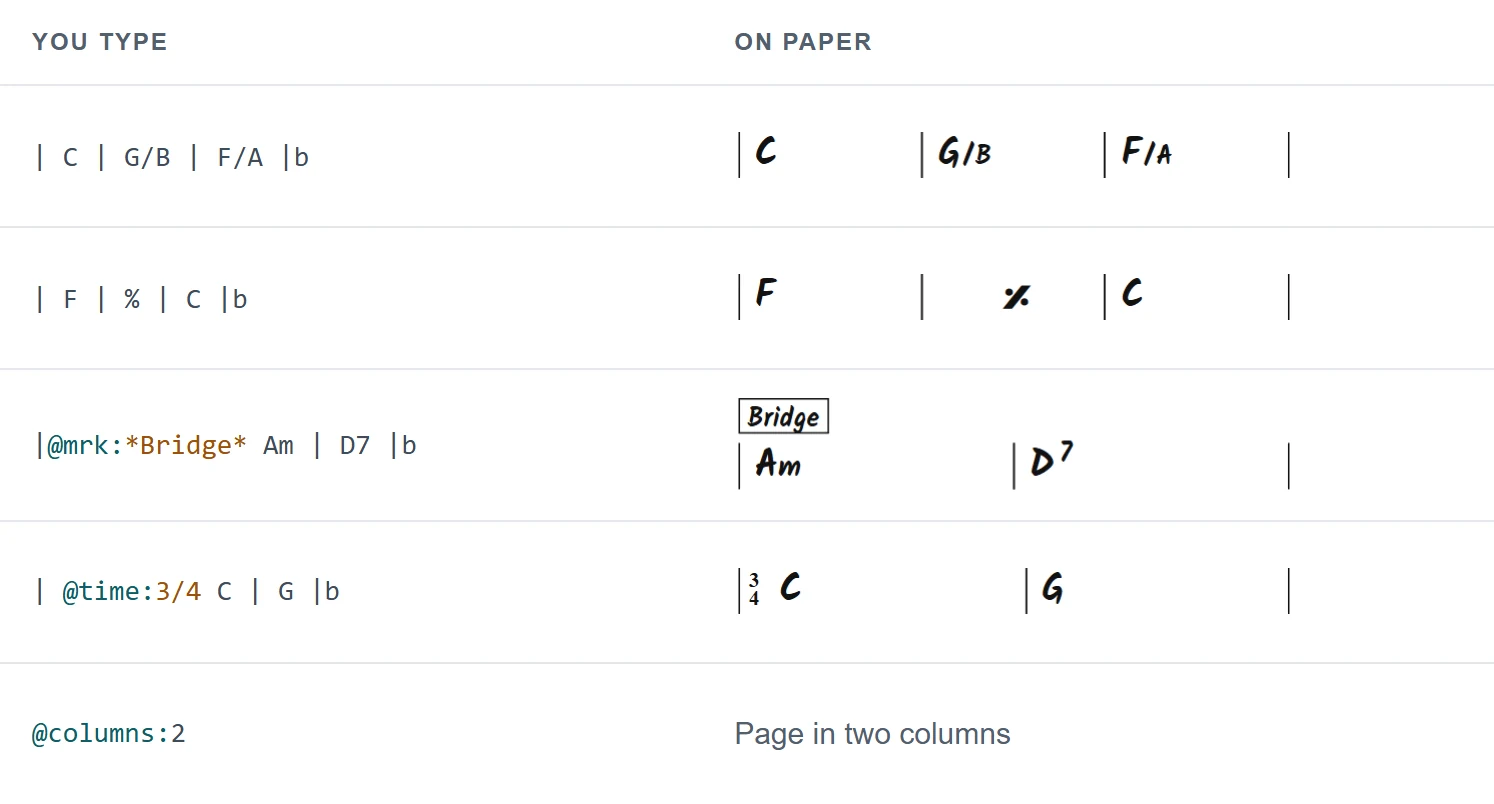
No. The notation is bar lines, chord names and a few markers that start with @. The whole notation guide fits on one page.
Where are my charts stored?
Without an account your chart stays in your own browser as a draft, and you save it as a .txt file on your own device (Ctrl+S). With Pro you also keep your charts in My songs, ready on every device.
Can I print to PDF?
Yes. The print preview shows exactly what ends up on paper. Press Ctrl+P and choose PDF in the print dialog of your browser.
Does it work for any style?
Yes. From swing and bossa to pop and ballads: you set style, key and time signature per tune, and you can change the time signature in any bar.
Can I practise along with a recording?
Yes, with Pro. Link a Spotify track with @spotify: and add @loop: lines, or open the practice player with your own audio files: slow down, change the pitch and loop a part. The Spotify player works on a computer; on a phone or tablet Spotify only plays a 30-second preview, so use the practice player there. See the editor help.
Can I use the editor without internet?
Yes, once you have opened it with a connection, in the browser or as an app: writing, the print preview and printing work offline. My songs, the Spotify player and the import from Ultimate Guitar need a connection.
Setlists
Which files can I add to a song?
PDF files, several per song, for example one per part, and chord sheets from My songs.
What happens to a PDF I upload but do not save?
It is removed. Cancel removes it at once, and an upload that was never saved, for example because the tab was closed, is removed after 24 hours.
Does the viewer work with a page-turn pedal?
Yes, with pedals that send the arrow keys, PageDown/PageUp or Space, which is what most Bluetooth page turners do.
Can I play without internet?
Yes. Tap Offline in a setlist before the gig; the setlist is then stored on the device with its PDF's and chord sheets. See Offline and installing.
Are my PDF's private?
Yes. Your personal songs and PDF's are only visible to you. In a band, the songs are visible to its members, and your personal PDF's only to you and the admins.
Bands
Who pays for a band?
Only the owner, with a band plan, which includes Pro. Members need a free account.
How do members join?
An admin invites them by e-mail. The link is valid for 14 days; the musician accepts with the account of that e-mail address. See Invitations.
What counts as a member, and as storage?
Members are the owner, the members and the open invitations. Storage is the size of all PDF's of the songs of the band.
What if two of us edit the same setlist?
That cannot happen by accident: while one person edits, the others see who is busy. See Editing at the same time.
What happens when the band plan ends?
Nothing is deleted and the band can still play. It only takes no new members or files until the owner extends the plan.
Account and paying
What does it cost?
The editor is free. Pro, with Setlists, costs € 29 per year or € [X] per month; band plans with Pro included cost € 39 or € 59 per year. See Pricing.
Can I cancel?
Yes, any time. Your plan stays active until the end of the period you paid for, and your songs are kept with your account.
How do I delete my account?
Send an e-mail to
Privacy
Are my practice recordings uploaded?
No. The practice player stores your audio files in your own browser, on that device only.
Do you use tracking cookies?
No. We only use the cookies the site needs, and our statistics work without cookies. See the cookie policy.
One shared library for the whole band. Everyone has the latest version of every song and setlist, and everybody plays from their own part.
No more mailing PDF's around before a gig, and no more musicians on stage with last month's set. A band works in the same app as Setlists: pick the band at the top and you see its songs and setlists.
Everyone on the same page
The band has its own songs, PDF's and setlists. When an admin changes the order of the set or adds a song, every member sees it the next time the app loads. Members play the setlists in the stage viewer and save them on their own device for offline use.
Roles
- Owner: holds the band plan. The owner can hand the band over to an admin, or delete it.
- Admins: manage the songs, the setlists, the shared PDF's and the members. A band can have several admins.
- Members: see the songs and setlists, play them, and add PDF's of their own.
Invite your band by e-mail
Enter an e-mail address and choose a role. The musician gets a personal link, valid for 14 days, and accepts with the account of that address; no account yet takes a minute and is free. Send an invitation again or withdraw it from the band page.
Shared and personal PDF's
The PDF's an admin adds are shared with the whole band. A member can add PDF's of their own: the bass part with their own notes, or a chord sheet in their own key. Those are seen only by that member and the admins, and an admin can share them with the band.
Each member chooses what the viewer shows: my PDF's and the shared ones, or only my own PDF's. Per song you can tick which PDF's you want. The choice is saved for your account, on all your devices.
No two people editing at once
While someone edits a song or a setlist, the others see who is busy. Nobody overwrites anybody else's work by accident. The lock ends when the editor closes, or after 15 minutes without activity.
Band plans
Every band plan includes Pro for the owner. The plans differ only in size; every band has all features.
| Band plan | Members | Storage | Per year, Pro included |
|---|---|---|---|
| Band Basic + Pro | 6 | 1 GB | € 39 |
| Band Pro + Pro | 25 | 5 GB | € 59 |
Members count the owner and the open invitations. Only the owner pays; members play the songs and setlists of the band with a free account. When a plan ends, nothing is deleted: the band only takes no new members or files. All details are on the pricing page.
Start your band
- Take a band plan for your account.
- Open Setlists, choose ⋮ › Bands and create the band.
- Invite the other musicians.
- Add the songs with their PDF's, and make the first setlist.
- Tap Play at the gig.
Your songs, your setlists and a stage viewer that turns the pages for you. Upload the PDF's you already have, add chord sheets from the editor, and play the whole set from one tablet.
Setlists is part of Pro and works on a tablet, a phone or a laptop. Playing in a band? The members of a band play its setlists with a free account, see Bands.
One library for all your songs
A song has a name, an artist and a duration, and one or more PDF's: the full chart, the bass part, the horn parts or the lyrics. Find a song by searching or with the letter index. Download a PDF again any time, or all files of a song as a zip.
Drag your PDF's onto the screen to add them, several at once: a new song gets the name of the first one. Give a song a note, such as capo 2 or drums count in: it is shown after the title and at the top of the viewer when the song starts.
You can also add a chord sheet from My songs to a song. It is drawn live, at the size of the screen, so a change in the editor is in your setlist at once.
Build a setlist in minutes
Make a setlist for a gig, tap Add songs and pick them from your library. Drag them in the right order, add a Break with its duration, and see the total time of the set. Copy last week's setlist and change only what is different.
The stage viewer
Tap Play and every page of the whole set is in one row, song after song:
- Turn pages with a swipe, a tap on the edge of the screen, the arrow keys or a Bluetooth page turner (pedal).
- Zoom with two fingers or a double tap; chord sheets stay sharp at every size.
- Jump to any song from the song list, and see the title of the next song when it starts.
- More PDF's per song: small numbered buttons jump straight to each of them.
- Breaks get a page of their own, so you know where the set ends.
- Notes: the note of a song is shown at the top for a few seconds when the song starts.
- Full screen, a light or dark theme, and the screen stays on while you play.
No Wi-Fi at the venue? No problem
Save a setlist on your device before the gig. Its PDF's and chord sheets are then stored in the browser, and the viewer works without internet. When a setlist has changed since you saved it, the app tells you, and one tap brings it up to date.
Install Setlists as an app on your tablet or phone: it opens full screen, without the bar of the browser, and holds the chord chart editor too.
From nothing to a gig in six steps. You can stop after any of them: the editor alone is already useful.
1. Create an account
The editor works without an account. For My songs, the practice tools and Setlists, create an account with your e-mail address and take Pro.
2. Write your first chart
Open the editor. Type the header (@title:, @key:) and the bars, and the print preview follows as you type. The notation guide has every symbol; the examples are good to start from. Save the chart in My songs (Pro) or as a .txt file, and print it or save it as a PDF.
3. Put your songs in Setlists
Open Setlists and tap + Song. Give it a name, then Upload PDF for each part you have (or drag the PDF's onto the screen), or Add Chord Sheet to use a chart from My songs. Tap Save.
4. Make a setlist
Tap + Setlist, give it a name and tap Add songs. Tap or drag the songs in, put them in order and add a Break where the set pauses.
5. Play it
Tap Play. Swipe, tap the edge of the screen or use a page-turn pedal. Before the gig, tap Offline in the setlist: then it also plays without internet. Tip: install the app (⋮ › Offline on this device › Install, or the menu of your browser), so it opens full screen.
6. Bring your band
With a band plan you create a band in Setlists (⋮ › Bands) and invite the others by e-mail. The band then shares one library of songs and setlists. See Bands.
More help: Editor help · Setlists and Bands help · FAQ